How to know if a WordPress plugin update broke your site
WordPress rolls back a plugin auto-update only when it hits a PHP fatal error. A broken layout, a dead slider or a missing buy button stays live until someone looks. A routine for before and after updates, with WP-CLI commands, rollback steps and an automatic check.
 CEO of Rookflare
- Published
- Updated
- Reading time
- 10 min read
Key takeaways
- WordPress only rolls back a plugin auto-update after a PHP fatal error; layout, script and content breakage stay live.
- Before updating, list pending updates, take a backup and capture the pages the plugin touches.
- After updating, check those pages at desktop and phone width with the console open, then read debug.log and Site Health.
- Roll back with the previous version or the backup, and turn off auto-updates for that plugin until a fix ships.
- The upgrader_process_complete hook can start an automatic check the moment WordPress finishes an update.
To know if a plugin update broke your WordPress site, open the pages it touches at desktop and phone width with the browser console open. WordPress itself rolls back an auto-update only after a PHP fatal error, so a broken layout, a dead script or a missing button stays live. To check automatically that nothing broke after plugin updates, start a screenshot comparison and page checks the moment WordPress finishes updating.
How do you know a plugin update broke your site?
Plugin updates break sites in a few common ways, and only a PHP fatal error is loud. The rest leave the site up, answering 200, while part of it no longer works. The last column is generic; any tool that runs the check will do.
| What broke | Symptom | How to spot it by hand | Automatic check that catches it |
|---|---|---|---|
| PHP fatal error | “There has been a critical error”, status 500 | Admin email with a recovery link, debug.log | Status code check; auto-update rollback |
| CSS conflict | Overlaps, wrong fonts, broken mobile layout | Compare with a screenshot from before | Screenshot comparison at both widths |
| JavaScript error | Menu, slider, cart or form does nothing | Browser console after a hard reload | JavaScript error check on page load |
| Missing button, form or shortcode | Element gone, or raw shortcode text | Find the element and click it | Critical element check, screenshot |
| Image, lazy-load or CDN plugin | Empty gaps where images were | Scroll to the end, Network panel | Broken image check |
| SEO plugin | Nothing visible; noindex, title, canonical | View source on one page per template | Robots tag, title and canonical check |
| Redirect or security plugin | URL lands somewhere else, or loops | curl -I on the main URLs |
Status and redirect check |
| Form or SMTP plugin | Form looks fine, messages never arrive | A test submission to your own inbox | None of the page checks; test submission |
| Admin-only breakage | Editor or settings page fails | Log in and open the editor | Only a check that logs in |
Form delivery needs a real test submission, covered in finding where a contact form stopped working.
Why WordPress does not tell you about most of it
WordPress has three safety features around updates, and none of them looks at how the page renders.
- Auto-update emails. WordPress runs plugin and theme auto-updates twice a day and emails the site owner after each attempt. The email reports whether the update installed, not whether the site still works.
- Rollback of auto-updates. Since WordPress 6.6, core rolls back a plugin auto-update when it detects a PHP fatal error. The Rollback Auto-Update merge proposal explains the test: one loopback request to the home page. A manual update is not covered: since WordPress 6.3, core restores the previous version when a manual update fails to install. One that installs fine stays in place, even if it breaks the page.
- Recovery mode. When a fatal error happens, WordPress emails the admin address a recovery mode link that pauses the faulty plugin for that session only.
None of them opens your product page at phone width or clicks the mobile menu. A page that loads without a fatal error passes, however it looks.
Before you update: a 10-minute routine
A few minutes before the update give you something to compare with and a way back. Run these steps on staging first when you have a staging copy.
-
List what is pending. The
updatecolumn showsavailablefor plugins with a new version, next to the installed and new version numbers. Thewp plugin listreference lists the fields.wp plugin list --update=available -
Read the changelog before a major version. Look for removed features and new minimum PHP or WordPress versions.
-
Take a backup of files and database. Write the database dump outside the web root, here one folder up, then copy it off the server:
wp db export ../backup-before-update.sql -
Capture the pages you will compare. Screenshot the home page, one page per template and every page that uses the plugin. Take each at desktop width and at about 390 px. The method is in finding what changed after an update.
-
Preview the update.
--dry-runshows which plugins would update without changing anything.--excludeholds back the risky ones, and--minoror--patchlimit an update to smaller releases. Thewp plugin updatereference lists every option.wp plugin update --all --dry-run wp plugin update --all --exclude=example-forms,example-checkout -
Update the risky plugins one at a time. Forms, checkout, page builders, caching and security plugins get their own update and their own check. Then a break has one cause.
There is no single correct order for core, plugins and themes. WordPress’s own update guide says some plugins may need updating before core and others may need the newer core first, so check the plugin’s notes.
After the update: what to click through
Open the site in a private window, so neither your login nor your browser cache hides what visitors see. Then work through the same page list as before:
- Load each page at desktop and phone width and scroll to the end. Compare with the before screenshots.
- Keep the console open and reload with the cache disabled. A new red error on a page with a form or cart deserves five minutes; which JavaScript errors matter in production helps you sort them.
- Use the parts the plugin powers. Open the mobile menu and run a search. Add a product to the cart and go to the payment step in test mode, then send a test form.
- Check the head of one page per template after an SEO or redirect plugin update: robots tag, title and canonical.
- Log in and open the editor and the plugin’s settings page. Front-end checks never see the admin area.
The full routine for releases in general, with a rollback rule, is in the post-deployment checklist.
Read debug.log and the Site Health screen
When something looks wrong, the log usually names the plugin. The WordPress debugging guide gives this setup for wp-config.php. It writes errors to wp-content/debug.log without showing them to visitors:
define( 'WP_DEBUG', true );
define( 'WP_DEBUG_LOG', true );
define( 'WP_DEBUG_DISPLAY', false );
@ini_set( 'display_errors', 0 );
The same guide does not recommend debug tools on live sites. Use this on staging, or switch it on briefly on the live site and remove it after the check. Follow the log while you click through the pages:
tail -f wp-content/debug.logThen open Tools → Site Health. The Site Health screen lists critical issues such as a failed loopback request, which scheduled tasks and auto-updates depend on. It also warns when the debug log may be publicly readable.
Roll back a plugin update that broke the site
Fix the visitor-facing problem first, then look for the cause. These routes run from quickest to safest:
-
Reinstall the previous version. For a plugin from WordPress.org,
--versionfetches that release and--forceoverwrites the installed copy. A paid plugin comes from the vendor’s zip:wp plugin install example-slider --version=3.2.1 --force wp plugin install ./example-slider-3.2.1.zip --force -
Use a rollback plugin. WP Rollback switches a plugin or theme to an earlier release from the admin. Its authors advise against using it on a live site and say to test on staging first. The free version covers WordPress.org plugins and themes only.
-
Deactivate the plugin when the admin is unreachable. Use the recovery mode link from the admin email. Or run WP-CLI with plugins skipped, so the broken one does not load:
wp plugin deactivate example-slider --skip-plugins -
Restore the backup when the update also changed the database. Some plugins migrate their tables during an update, and an older version may not read them.
Then stop the plugin from coming back on its own until a fixed release ships:
wp plugin auto-updates disable example-sliderWhen no single update explains the break, two plugins probably conflict. The Health Check & Troubleshooting plugin disables plugins and switches to a default theme. Troubleshooting mode applies to your user only, until you turn it off or log out. Turn plugins back on one at a time until the break returns.
Automatically check that nothing broke after plugin updates
A manual check works when you start the update yourself. Auto-updates run twice a day without you, so the check has to start by itself. WordPress fires the upgrader_process_complete action when an update of core, a plugin, a theme or a translation finishes. It covers updates from the admin and from WP-CLI, as the WordPress update hook guide notes. Background auto-updates run through the same upgrader in the WordPress source, but test the hook once on your own site.
A must-use plugin can call any webhook from that action. That is a single PHP file in wp-content/mu-plugins, which nobody can deactivate by accident:
<?php
add_action( 'upgrader_process_complete', function ( $upgrader, $hook_extra ) {
    wp_remote_post( 'https://hooks.example.com/after-update', [
        'headers' => [ 'Content-Type' => 'application/json' ],
        'body'    => wp_json_encode( [ 'type' => $hook_extra['type'] ?? '' ] ),
        'timeout' => 10,
    ] );
}, 10, 2 );
The webhook can start a smoke test or a monitoring scan; visual regression without writing code compares the options. The action does not fire for code you deploy with Git or SFTP, so call the webhook from that deploy script.
The approaches differ in what they see:
| Approach | Catches | Misses |
|---|---|---|
| WordPress emails and rollback | PHP fatal errors | Layout, scripts, missing elements |
| Uptime monitor | Status 500 and outages | Anything that still answers 200 |
| Scan of the live site after each update | Layout, scripts, images, tags, key elements | Logged-in pages, form delivery, payments |
Run the same check on many WordPress sites
On many client sites, install the same must-use plugin everywhere and keep each site’s webhook address and token in its own wp-config.php. The plugin file then stays identical on every site, and a token never sits in a file you copy around.
Some WordPress management tools take screenshots around the update runs they start. A check started by the update hook should also cover the auto-updates WordPress runs on its own, since they go through the same upgrader; test it once on your own site.
What Rookflare checks after a WordPress update
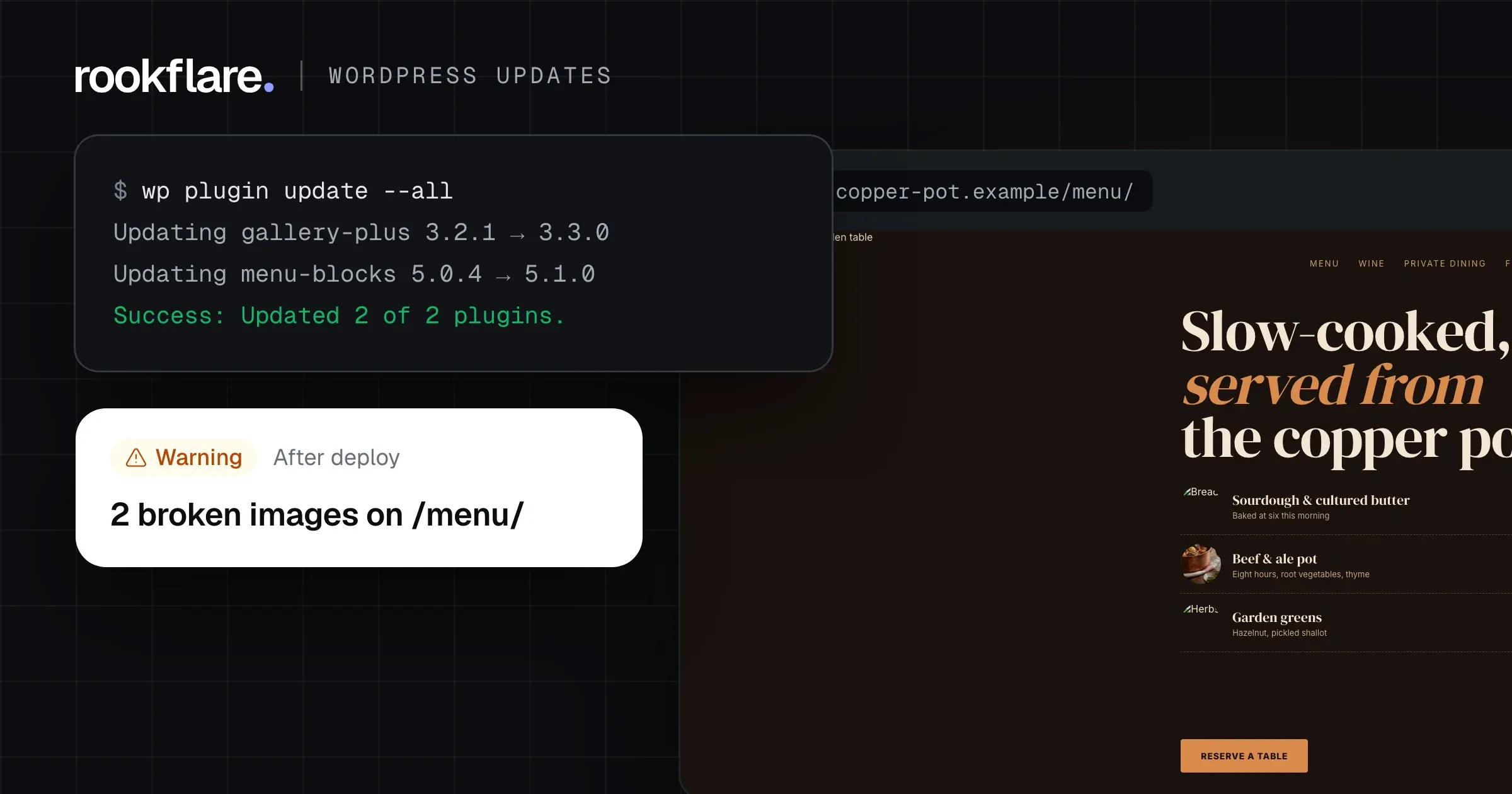
Rookflare works the last way in the table. On the Growth and Agency plans, the WordPress update hook is a few lines of PHP with a token kept in wp-config.php. It starts a scan when WordPress finishes updating core, plugins or themes, from the admin or from WP-CLI. Each website has its own token, so every client site on an account starts its own scan. The scan history lists these scans as “After deploy”. The scan compares desktop and mobile screenshots of your monitored pages with the approved baseline. It checks status codes, redirects, broken images, JavaScript errors, the robots tag, title and canonical. It also checks your critical elements, such as the add-to-cart button, and opens a critical issue when one is missing or hidden. The website health monitoring page lists each check.
The limits are worth knowing before you rely on it:
- One scan per WordPress version within 24 hours. The hook sends the WordPress version as its reference. Calls with the same reference within 24 hours return the scan that is already there. A second plugin update within those 24 hours is covered by the scheduled scans or by “Scan now”.
- Daily limit. Scans started by the hook count as on-demand scans, which have a daily limit per plan. Starter has no update hook and relies on scheduled scans and “Scan now”.
- Logged-out visitor only. Rookflare opens public pages like a visitor who is not logged in. It does not check wp-admin or member pages, click buttons, submit forms or place orders.
- No rollback and no culprit. It shows what changed on the page, not which plugin caused it, and it does not undo updates.
Questions
Should I turn on auto-updates for WordPress plugins?
Turn them on for small plugins with a good update record, where a security fix matters more than a rare break. Keep them off for page builders, store, form and caching plugins, and update those by hand with a check afterwards.
How soon after an update should I check the site?
Right after the update, then once more about an hour later. The second pass catches cached pages and CDN copies that were still serving the old version during the first one.
Can a plugin update break the site without any error?
Yes. A CSS change can hide a button or stack columns badly while the page answers 200 and logs nothing. Only a look at the page, by a person or a screenshot comparison, finds that.
Does WordPress roll back a broken plugin update by itself?
Only for plugin auto-updates, and only when the home page hits a PHP fatal error after the update. A manual update that installs fine stays in place, and so does any breakage without a fatal error.
Share this article

Written by
Dalius Pamedytis
CEO of Rookflare
Dalius is the CEO of Rookflare and the engineer who builds it, from the Playwright scanner that captures every page to the dashboard where you review what changed. Day to day he also works on large marketing websites and dashboards, so he has seen how a quiet release can break a checkout button or a sign-up form. He writes about what actually breaks on real websites and the simplest way to catch it before your visitors do.
More from Dalius PamedytisKeep reading
-
Technical checks
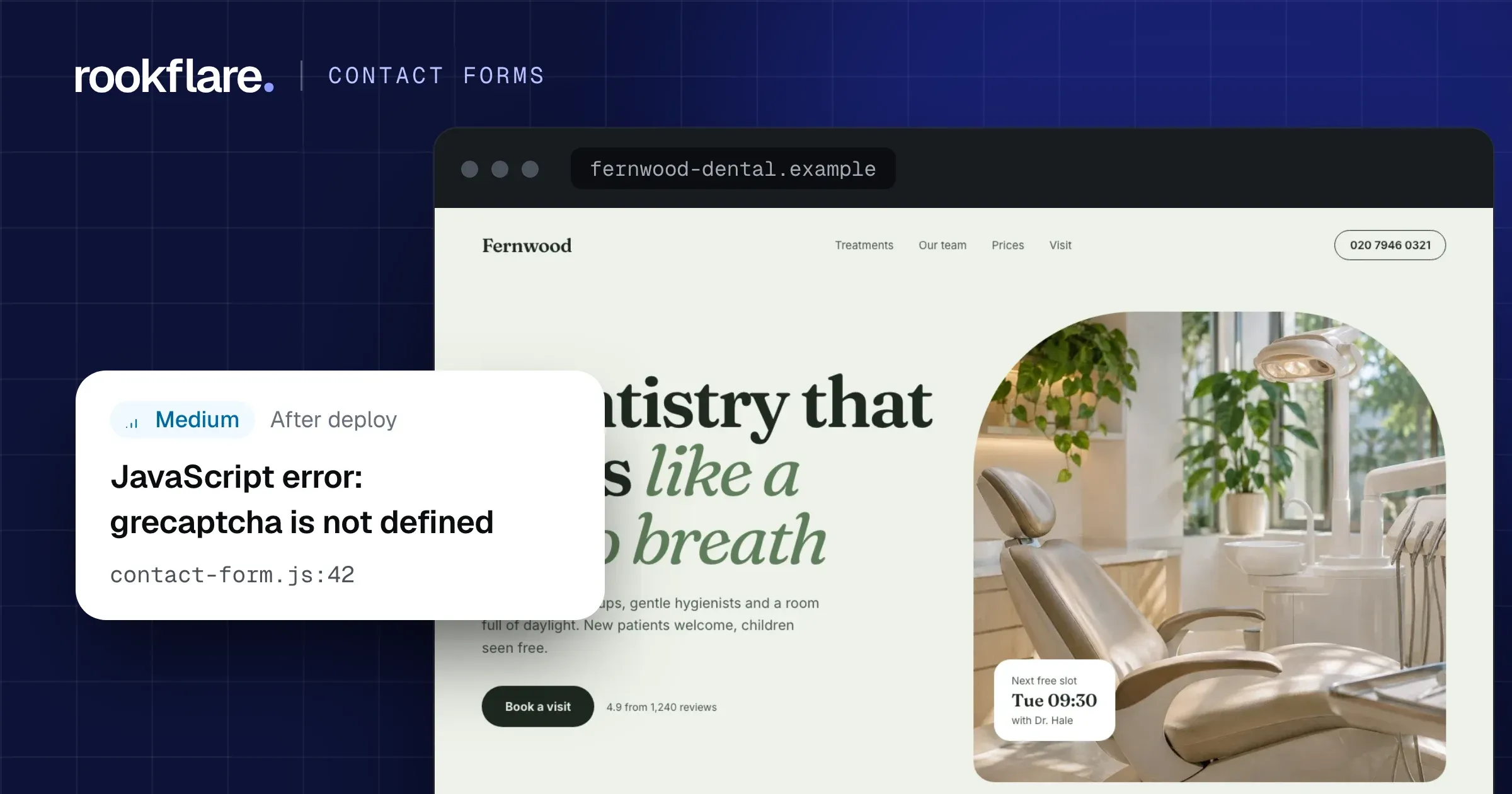
Contact form stopped working: how to find the broken step
The form shows, the visitor clicks Send, and no message arrives. Six steps sit between the page and your inbox. How to test each one, read the symptom and choose checks that tell you next time.
-
Technical checks
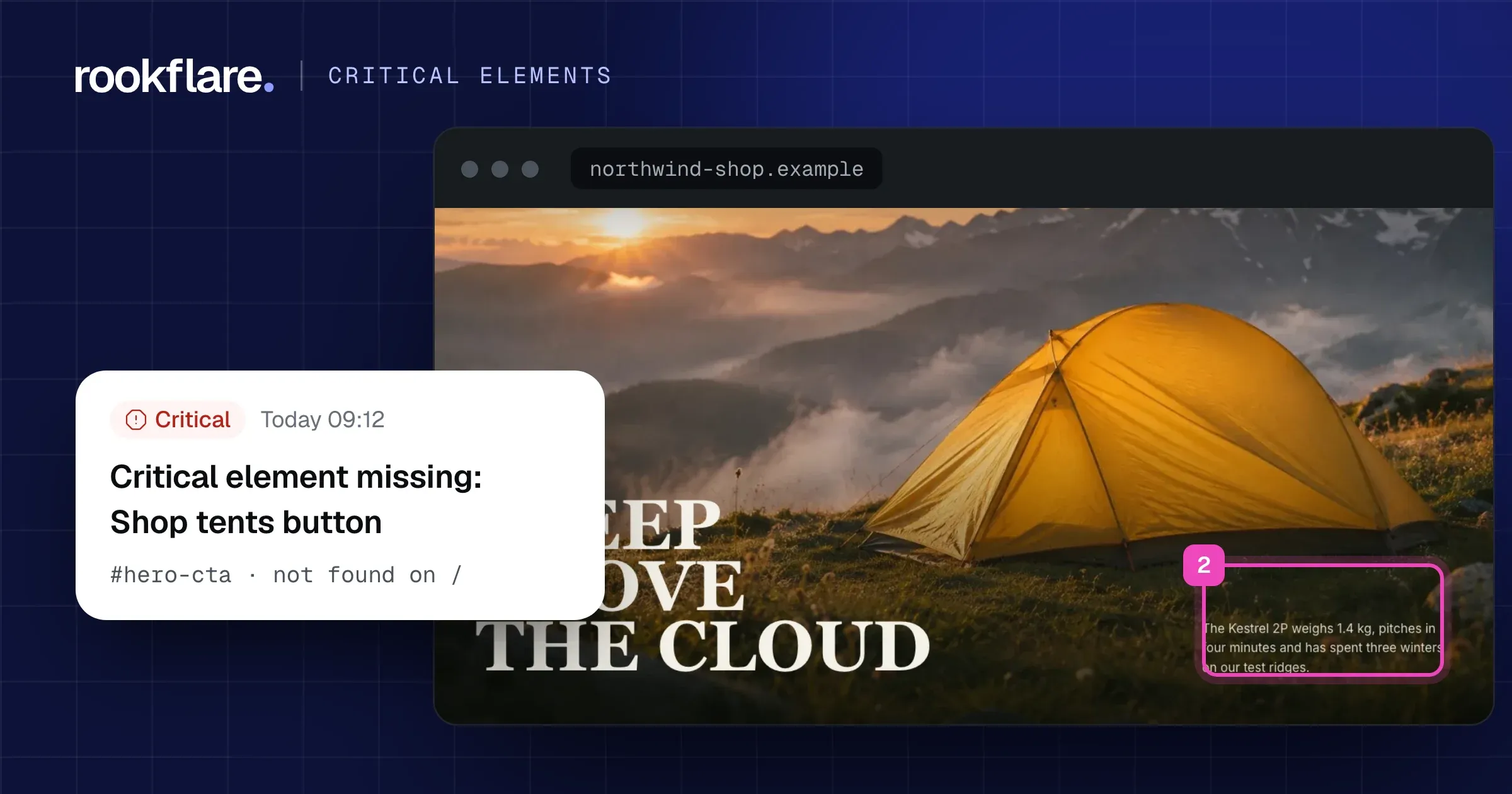
Monitor your checkout button, signup form and key elements
If the booking button disappears, nobody files a bug report. They just stop booking. How to pick the few elements a page cannot lose, write selectors that survive a redesign and check they are really visible.
-
Technical checks
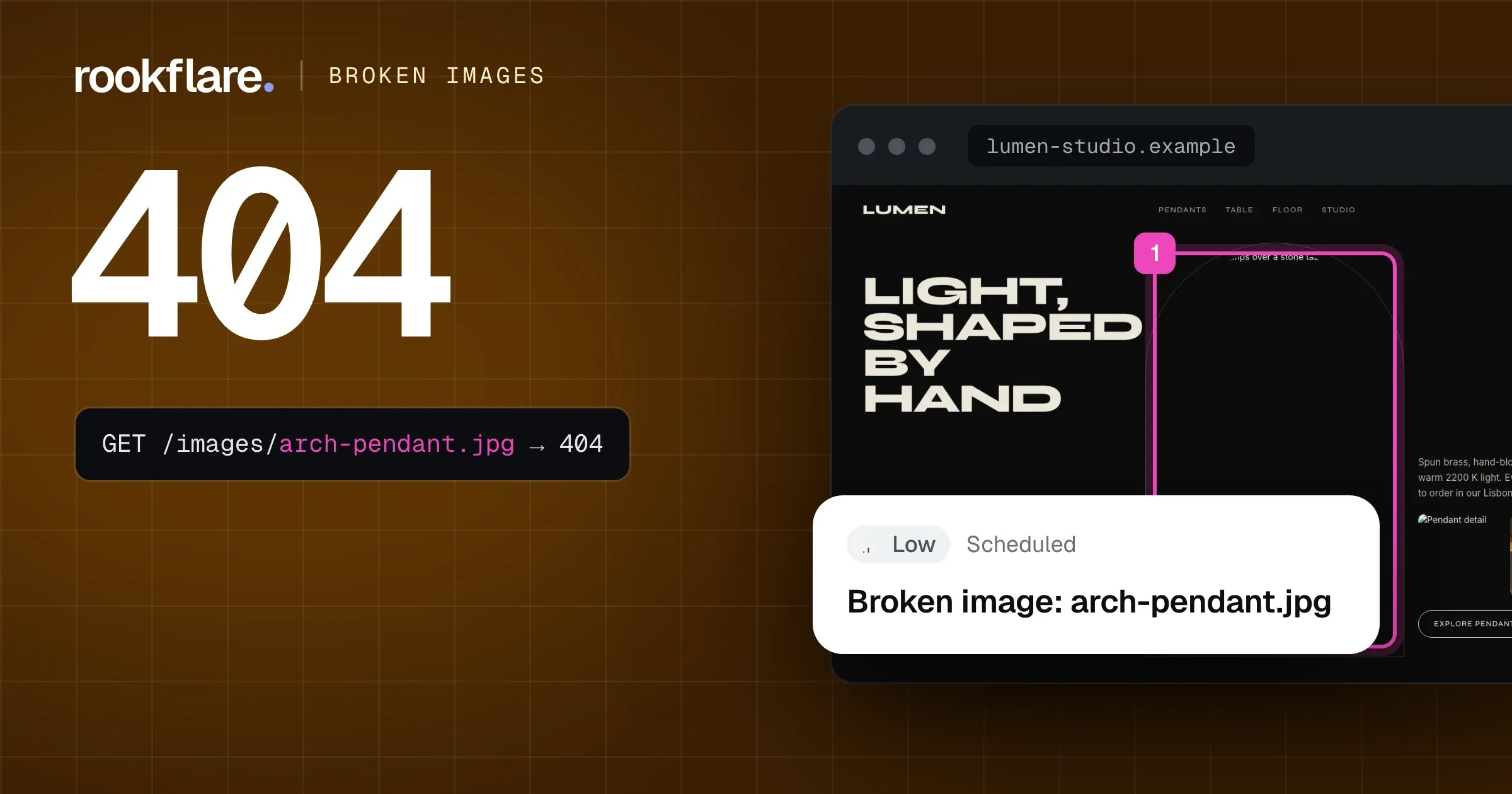
How to find broken images on your website and catch new ones
A failed image now leaves a tidy empty box instead of an icon, so nobody reports it. A console snippet that scrolls the page and lists every failed image, the srcset trap, and the deploy habits that cause them.
