Contact form stopped working: how to find the broken step
The form shows, the visitor clicks Send, and no message arrives. Six steps sit between the page and your inbox. How to test each one, read the symptom and choose checks that tell you next time.
 CEO of Rookflare
- Published
- Reading time
- 8 min read
Key takeaways
- A contact form passes six steps: page, browser script, server request, sending, delivery and inbox.
- One test submission with the Network panel open shows which step failed.
- A "Thank you" message only proves the request reached the server, not that the email arrived.
- Send form mail from your own domain with SPF or DKIM, and put the visitor in Reply-To.
- Choose checks by volume: a busy form can alert on silence, a quiet one needs scheduled test submissions.
A contact form usually stops working without an error anyone sees: the page says “Thank you” and the message never arrives. The cause sits in one of six steps between the page and your inbox. Send one test message with the browser’s Network panel open, find the step that failed and fix only that step.
The six steps between a contact form and your inbox
Every contact form goes through the same chain, whatever the platform. A failure at any step loses the message, and most forms show the visitor an error only for the first three.
| Step | What happens | What breaks it |
|---|---|---|
| 1. Page | The page loads and the form renders | A server error, a template or page builder change |
| 2. Browser script | Validation and spam protection run, then submit fires | A JavaScript error, a spam protection key the domain does not match |
| 3. Server request | The form data reaches your handler or a form service | A moved endpoint, a firewall rule, a new security header |
| 4. Sending | The handler passes the message to a mail server | Mail disabled by the host, an expired SMTP password or API key |
| 5. Delivery | The receiving mail server accepts the message | Failed SPF or DKIM, a From address you may not send for |
| 6. Inbox | A person reads the message | The spam folder, a mail rule, an address nobody reads any more |
Steps 5 and 6 happen after the server has answered the browser. That is why a form can show its success message and still lose every enquiry.
An uptime check sees none of steps 2 to 6, because the contact page still answers 200. The wider pattern is described in why a page can be up but not working.
Find the broken step with one test submission
One test, done in order, narrows the failure to a single step. Use a test address you control and fictional details, so no real personal data ends up in logs or tickets.
- Open the contact page in a private window, at desktop width and then at phone width. Confirm the form and its submit button are there.
- Open the developer tools and the Console tab. Note any red errors before you touch the form.
- Switch to the Network tab and turn on “Preserve log”, so the request survives a redirect to a thank-you page.
- Fill in the form with test data, such as the name “Form Test” and
[email protected], and submit it. - Find the request the form sent, usually a
POST, and read its status code and response. - Open the entries list of the form plugin or form service, if it stores submissions.
- Check the recipient’s inbox, the spam folder and any rules on a shared mailbox.
Chrome’s guide to the Network panel shows how to open a request and read its status, headers and response. The request is the most useful line in the whole test. Endpoints and response fields differ per plugin and service; these three lines show the pattern:
POST /contact/submit   200   {"status":"mail_sent"}
POST /contact/submit   200   {"status":"mail_failed"}
POST /contact/submit   403   (blocked by a firewall rule)
The second line is the trap. The server answered 200, the page may well say “Thank you”, and the handler itself reports that sending failed.
Read the symptom to find the failed step
Match what you saw in the test against this table. Work from the top; the first row that matches usually names the cause.
| What you saw | Failed step | First thing to check |
|---|---|---|
| Form missing or covered at one width | 1. Page | Recent template, page builder or theme changes |
| Red console error, the button does nothing | 2. Browser script | The script named in the error and what changed with it |
| No request is sent, a spam protection or “Refused to send form data” error | 2. Browser script | The spam protection keys and their domains, the Content-Security-Policy header |
| Request fails with 403, 404 or a 5xx code | 3. Server request | The form endpoint, firewall rules, the server log |
| Request returns 200, no entry in the form’s log | 3. Server request | Handler errors in the server log |
| Entry logged, the response says sending failed | 4. Sending | SMTP or email API credentials, the host’s mail limits |
| Sent, but nothing in the inbox or spam folder | 5. Delivery | Bounce messages, SPF and DKIM for the From domain |
| Arrives late, in spam or in the wrong mailbox | 6. Inbox | Mail rules, the recipient address, sender authentication |
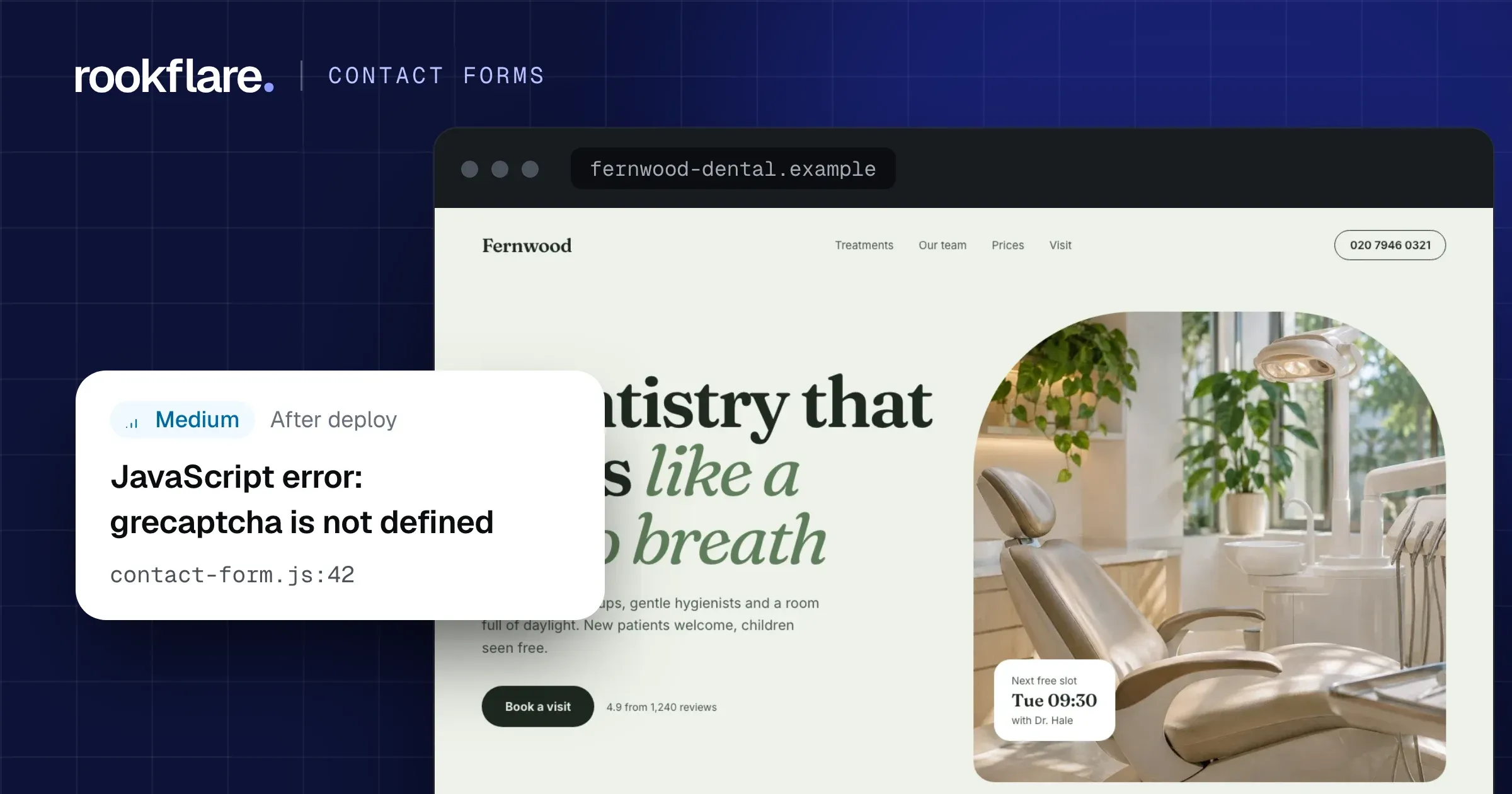
A console error at step 2 only matters if it stops the form’s own code. How to tell those errors from noise is covered in which JavaScript errors in production matter.
Two causes in the table need a closer look, because they follow changes that have nothing to do with the form.
Spam protection keys after a domain change
Google says a reCAPTCHA key is “normally tied to a set of individual domains” or app package names. Move the site to a new domain or subdomain without adding it to the key, and the check can fail for every visitor. Other spam protection services work the same way, so check their domain settings after any move.
Security headers that block the form target
The form-action directive of a Content-Security-Policy header restricts where forms may submit. MDN’s form-action reference shows the browser refusing to send form data that the policy does not allow. A form that posts to an outside form service breaks the day such a policy goes live, unless the service’s host is listed:
Content-Security-Policy: form-action 'self' https://forms.example.netWhy a “Thank you” message proves nothing about delivery
A success message proves that step 3 worked. Many handlers show it as soon as their mail function returns without an error.
WordPress documents this for wp_mail(), the function WordPress form plugins usually send through: “A true return value does not automatically mean that the user received the email successfully”. Other mail libraries behave the same way. Accepted for sending is not the same as delivered.
Sending and delivery also break for reasons outside the website:
- A mail password or API key changes and the form keeps using the old one.
- Email moves to a new provider and the domain’s SPF record no longer lists the server that sends form mail.
- The host limits or disables PHP mail after a plan change or a server move.
- The recipient leaves and their mailbox is closed or forwards to nobody.
Changes on the website side, such as a plugin or theme update, tend to break steps 1 and 2 instead. How to find what an update changed on the page is in finding what changed after an update.
Send form mail from your own domain with SPF or DKIM
Many delivery failures start with the From address. Some forms put the visitor’s address in From, so the message claims to come from the visitor’s mail provider. Your server is not allowed to send for that domain, so the authentication checks fail and the receiving server may reject or junk the message.
Send from an address on your own domain and put the visitor in Reply-To. Replying still reaches the visitor:
From:     Fernwood Dental website <[email protected]>
Reply-To: Form Test <[email protected]>
To:       [email protected]
Then authenticate the sending domain. Google’s email sender guidelines require every sender to Gmail accounts to set up SPF or DKIM for the sending domain; bulk senders also need DMARC. A contact form sends little mail, but the SPF or DKIM rule applies to it too.
Send through an authenticated mail server or an email API rather than the web server’s own mail function. Then open the test message in Gmail, choose “Show original” and check that SPF and DKIM both say PASS.
Choose checks that notice the next failure
No single check covers all six steps. The table shows what each one sees:
| Check | Steps it covers | What it misses | Fits |
|---|---|---|---|
| Scheduled page scan in a real browser | 1, and 2 while the page loads | Errors on submit and everything after it | Every form |
| Test submission by a person | 1 to 6 | Failures between two tests | Every form, weekly and after changes |
| Scripted submission to a test inbox | 1 to 6 | Needs a test mode for spam protection | The forms that matter most |
| Alert when no message arrives for N hours | 3 to 6, as a whole | Partial failures, normal quiet periods | Forms with several messages a day |
| Bounce and error alerts from the mail service | 4 and 5 | Mail filtered as spam after delivery | Forms that send through an email API |
Choose by volume. If a form normally gets several messages a day, a silence alert finds a full failure within hours. If it gets a few a week, silence is normal, so schedule a test submission instead.
Run a test submission after every plugin, theme, hosting or email change as well. It belongs on the post-deployment checklist next to the status code and layout checks.
Mark test submissions with a fixed name or subject, so the CRM does not count them as leads. Scripted tests will meet spam protection; ask for a test mode or an allowed test address, not a switch that turns protection off for everyone.
What Rookflare checks on a contact page
Rookflare covers step 1 and the page-load part of step 2 on a schedule. Each scan opens the contact page at every width the website is scanned at. It records the status code and the JavaScript errors thrown while the page loads, and compares the screenshot with the approved baseline.
Add the form and its submit button as critical elements, and a scan opens an issue when either one is missing or hidden. The website health monitoring page lists the checks that run alongside them. On Growth and Agency, the WordPress update hook starts a scan when WordPress finishes updating core, plugins or themes.
Rookflare does not click buttons or submit forms. An error in the submit handler, a blocked request and everything from sending to the inbox still need the test submission described above.
Questions
How often should I test my contact form?
Weekly for a form that brings in leads, and after every change to plugins, theme, hosting, DNS or email. A busy form can rely on a silence alert between tests.
The form says the message was sent, but nothing arrived. Where do I start?
Start at sending and delivery. Check the form’s entries list, then the mail service’s log for bounces, then SPF and DKIM for the From domain.
Can I test a form without sending real personal data?
Yes. Use a fictional name and a test address on a domain you control, and tag the subject so the CRM can filter it out.
Share this article

Written by
Dalius Pamedytis
CEO of Rookflare
Dalius is the CEO of Rookflare and the engineer who builds it, from the Playwright scanner that captures every page to the dashboard where you review what changed. Day to day he also works on large marketing websites and dashboards, so he has seen how a quiet release can break a checkout button or a sign-up form. He writes about what actually breaks on real websites and the simplest way to catch it before your visitors do.
More from Dalius PamedytisKeep reading
-
Technical checks
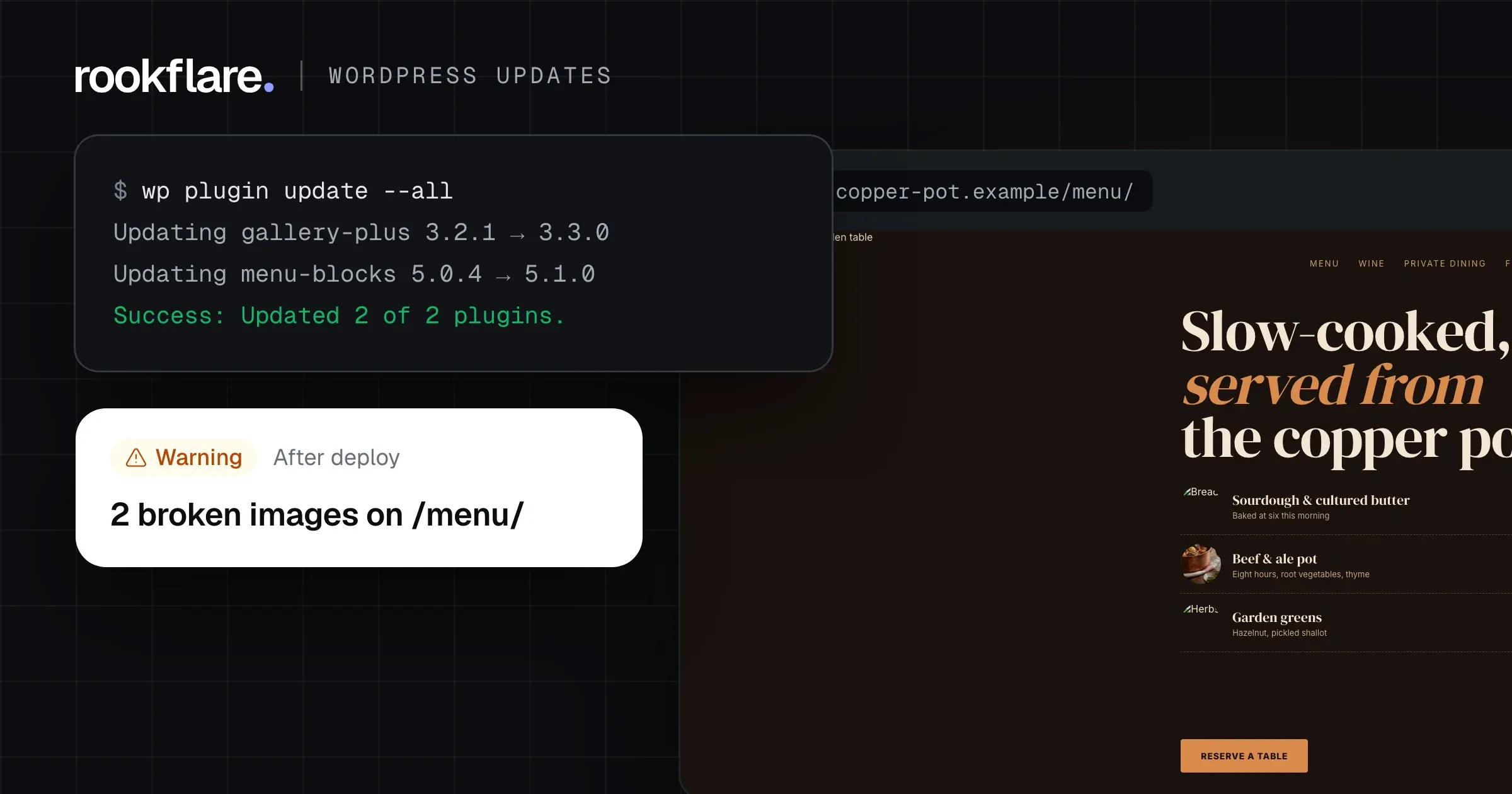
How to know if a WordPress plugin update broke your site
WordPress rolls back a plugin auto-update only when it hits a PHP fatal error. A broken layout, a dead slider or a missing buy button stays live until someone looks. A routine for before and after updates, with WP-CLI commands, rollback steps and an automatic check.
-
Technical checks
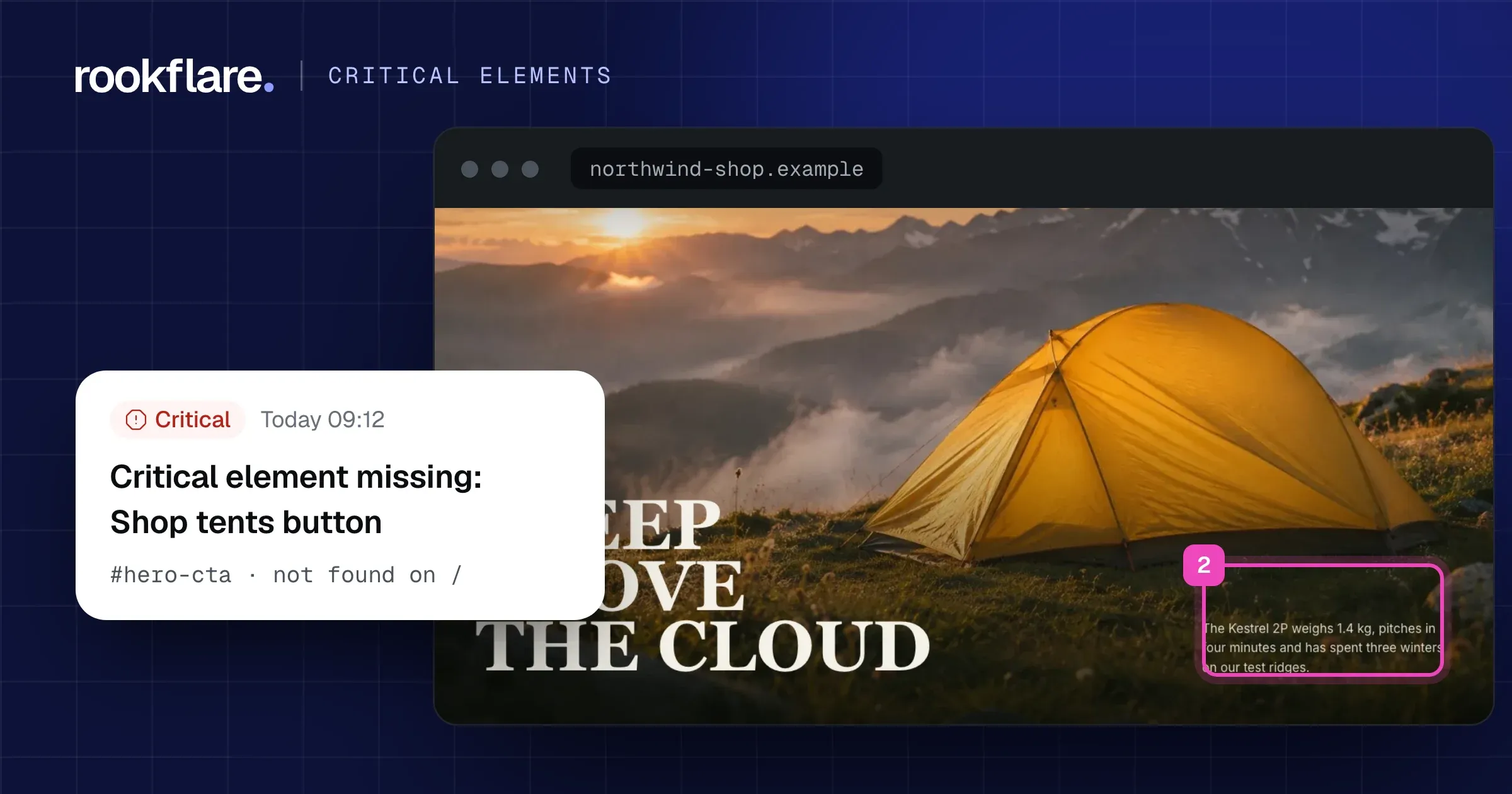
Monitor your checkout button, signup form and key elements
If the booking button disappears, nobody files a bug report. They just stop booking. How to pick the few elements a page cannot lose, write selectors that survive a redesign and check they are really visible.
-
Technical checks
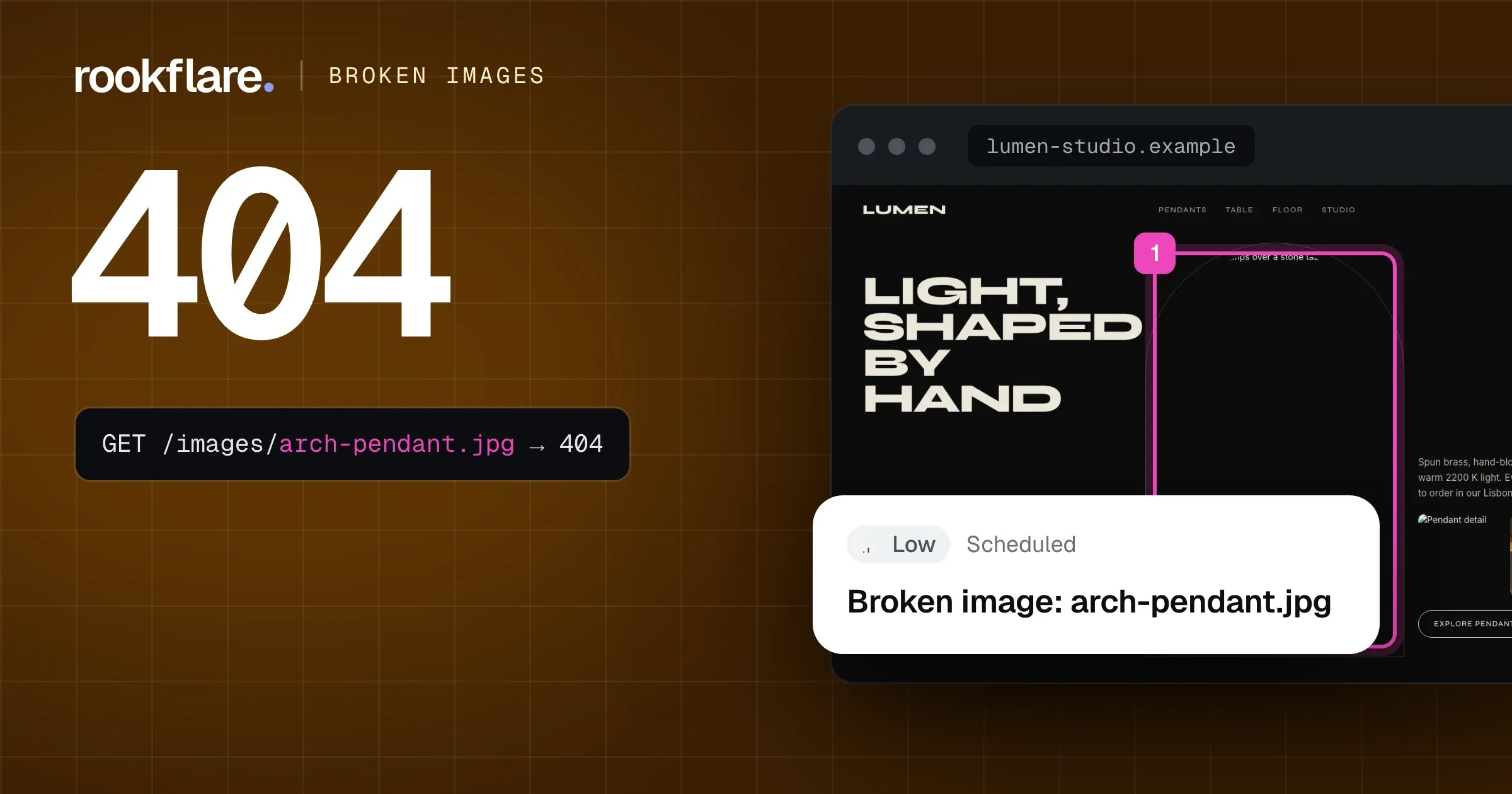
How to find broken images on your website and catch new ones
A failed image now leaves a tidy empty box instead of an icon, so nobody reports it. A console snippet that scrolls the page and lists every failed image, the srcset trap, and the deploy habits that cause them.
