Monitor your checkout button, signup form and key elements
If the booking button disappears, nobody files a bug report. They just stop booking. How to pick the few elements a page cannot lose, write selectors that survive a redesign and check they are really visible.
 CEO of Rookflare
- Published
- Updated
- Reading time
- 6 min read
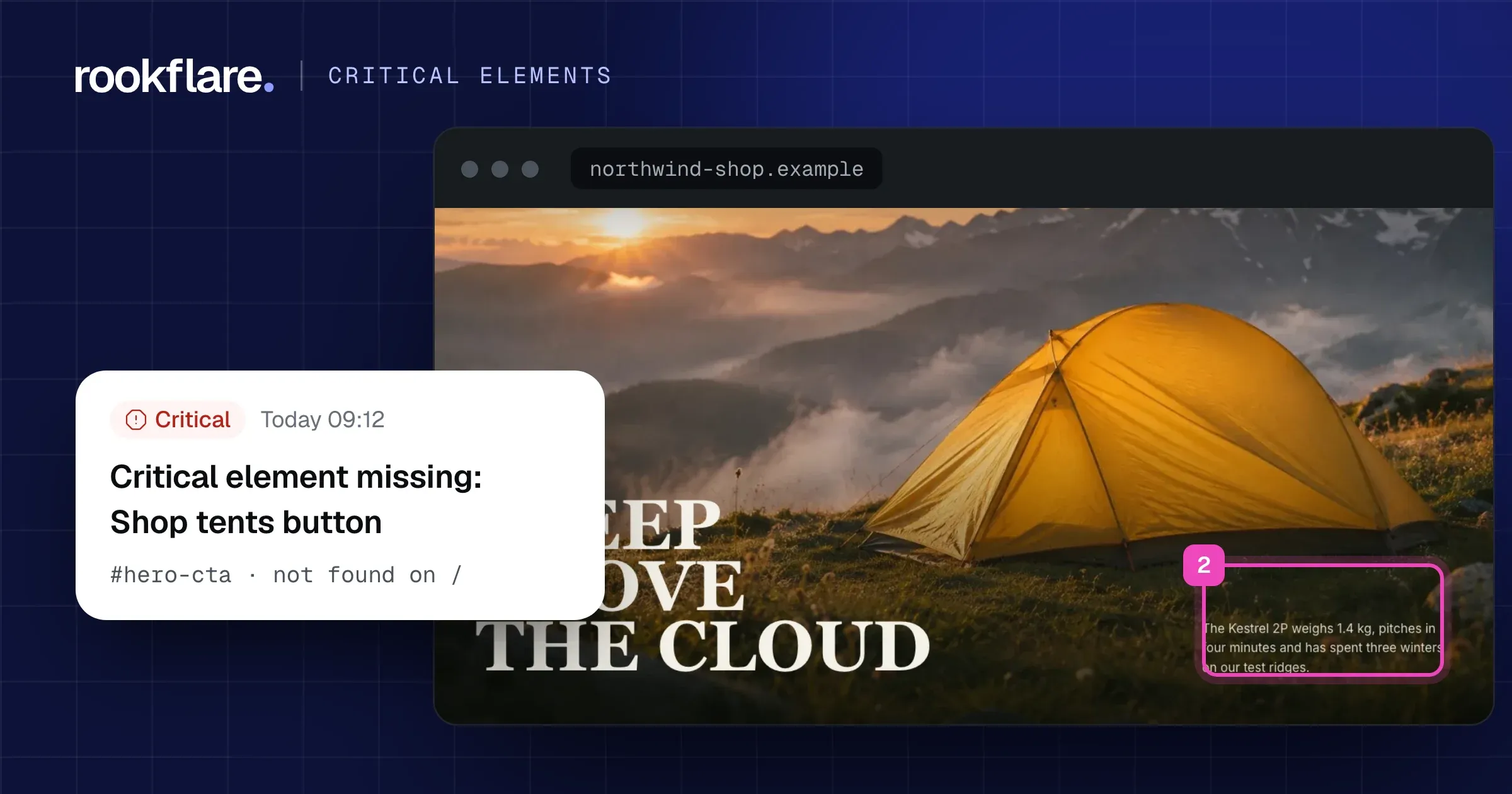
Key takeaways
- Pick three or four elements per page that the page cannot work without.
- Use selectors that describe the job, such as a data attribute, not the styling.
- Present, visible and clickable are three different checks; know which one your tool runs.
- Check at desktop and phone width, because the two layouts hide different things.
To get an alert when the Add to Cart button, the contact form or another key element disappears, check for it on a schedule. Critical element monitoring does this: it alerts when one of a few chosen elements is missing from the page or hidden. Pick three or four per page, give each a selector that describes its job, and decide whether “visible” must also mean clickable.
Three ways to get an alert when an element disappears
Nobody files a bug report when a checkout button disappears; people just stop buying. Three kinds of scheduled check can notice it for you:
| Method | How it works | Misses |
|---|---|---|
| Keyword check in an uptime monitor | Downloads the HTML and alerts when a phrase like “Add to cart” is missing | Elements built by JavaScript; a button hidden by CSS while its text stays |
| Scheduled browser test | A Playwright script runs on a timer and fails when the element is gone | Nothing it is written for, but someone writes and maintains the code |
| Monitoring tool with critical elements | You pick the element; each scan checks it in a real browser | Usually does not click, so a dead button that is still visible passes |
A keyword check is the quickest start, and it is often included in uptime tools. It reads the HTML the server sends, so it cannot tell whether the button is visible, and it misses forms that a script adds after the page loads.
A screenshot comparison against an approved baseline also shows a missing button. A small button is a tiny share of the page’s pixels, though, so a check aimed at the element itself is the more direct alert. The arithmetic is in visual regression testing without code.
Choose the critical elements for each page type
A critical element is one whose absence stops the page from doing its job. If the footer breaks, a few people notice. If the “Book an appointment” button disappears, bookings stop.
The table gives a starting point for the demo sites we use in our own examples. Three or four elements per page is enough; if everything is critical, nothing is.
| Page | Critical elements |
|---|---|
| Northwind Shop, product page | Add-to-cart button, price, size or variant picker |
| Northwind Shop, checkout | Payment form, “Place order” button, order total |
| Fernwood Dental, home page | “Book an appointment” button, phone number in the header |
| Harborline Travel, home page | Trip search form, search button |
| Halden Studio, contact page | Contact form, submit button, email address |
Leave out things that change on purpose, such as a seasonal banner. A check that fails every time marketing updates a campaign gets switched off.
Write selectors that survive a redesign
A selector is the address of the element in the page. Styling classes change with every redesign, so a selector built from them breaks for reasons that have nothing to do with the element. Prefer, in this order:
- A dedicated data attribute, such as
[data-monitor="booking-cta"]. It describes the job and nobody restyles it. - A stable
id, such as#checkout-form, if your framework does not generate ids. - An accessible name or role, such as
button[aria-label="Add to cart"]. - A link’s
href, such asa[href="/book/"], for links that point to a fixed page.
Avoid long class chains, positions such as :nth-child(3) and generated class names like css-1x2y3z. The difference in markup is small:
<!-- fragile: tied to styling -->
<button class="btn btn-lg btn-primary mt-4">Book an appointment</button>

<!-- stable: describes the job -->
<button data-monitor="booking-cta">Book an appointment</button>
MDN’s page on data attributes covers the syntax. Any name after data- works; pick one and use it across the site.
How to check if an element exists on a page
To check if an element exists on a page, open the browser console and pass a CSS selector to document.querySelector(). It returns the first matching element, or null when nothing matches. document.querySelectorAll() returns every match, so its length also shows a selector that matches too much:
document.querySelector('[data-monitor="booking-cta"]') // null: the element is missing
document.querySelectorAll('[data-monitor="booking-cta"]').length // should be 1
Run this for each selector before you rely on it. A result of 0 means a typo or a missing element; more than one means the check may pass on the wrong element.
Existence only answers “is it in the HTML?”. Whether a visitor can see it and click it are separate checks.
Present, visible and clickable are three different checks
An element can be in the HTML and still useless. These three checks catch different failures:
| Check | Passes when | Misses |
|---|---|---|
| Present | The selector matches an element in the page | display: none, zero size |
| Visible | The element has a size and is not hidden by CSS | A pop-up or banner covering it |
| Clickable | The element is the top element under the pointer | Whether the click does what it should |
Playwright’s page on actionability checks uses the same split. Its “visible” means a non-empty bounding box and no visibility: hidden, so an element covered by an overlay still counts as visible.
To test all three by hand, paste this into the console. It scrolls the element into view, checks visibility and asks the browser which element sits on top of its centre:
const el = document.querySelector('[data-monitor="booking-cta"]')
el?.scrollIntoView({ block: 'center' })
const box = el?.getBoundingClientRect()
const top = box
	? document.elementFromPoint(box.x + box.width / 2, box.y + box.height / 2)
	: null
console.table({
	present: el !== null,
	visible: el?.checkVisibility() ?? false,
	clickable: el !== null && top !== null && el.contains(top),
})
checkVisibility() is described in MDN’s checkVisibility reference. If visible is true and clickable is false, something is covering the element: a cookie banner, a chat widget or a newsletter pop-up.
Check at desktop and phone width
The two layouts hide different things. On a phone the main navigation usually folds into a menu, which is expected. A checkout button pushed below a sticky footer, or a form that only appears on desktop, is not.
Decide per element whether it must be visible at both widths, then check both. Common phone-only breakage is collected in layout bugs that only show on mobile or desktop.
Automate the check in a test suite
If the site has a test suite, Playwright’s toBeVisible() assertion runs the “visible” check from the table. For the clickable check, click({ trial: true }) runs Playwright’s actionability checks without clicking:
await expect(page.locator('[data-monitor="booking-cta"]')).toBeVisible()
await page.locator('[data-monitor="booking-cta"]').click({ trial: true })
A test suite runs against a build before release. Production can still differ through content changes in the CMS, third-party scripts and consent banners. That is why critical elements also belong on the list of checks after every deploy and in scheduled monitoring.
Monitor critical elements with Rookflare
In Rookflare, the Critical elements card in a website’s settings has two ways in. “Pick on page” opens a screenshot of the page where you click the element, with buttons and forms suggested. “Add by CSS selector” takes a selector you write. Each scan then checks every element at each width the website is scanned at and opens a critical issue when one is missing or hidden. The alert goes by email on every plan, and by Slack or SMS on Growth and Agency. The website health monitoring page lists the checks that run alongside it.
Rookflare’s visibility check follows the Playwright definition above, so it does not report a button covered by an overlay. A new pop-up over the button usually changes the screenshot, and the comparison against the approved baseline shows it as a visual change. The scanner hides common cookie banners before the screenshot, though, so a covering consent banner shows up in neither check. Rookflare does not click buttons or submit forms either, so a person still tests that an order or a message arrives.
A missing element often has a cause in the console. A script that throws during setup can stop a form from rendering, which is covered in which JavaScript errors in production matter.
Questions
How many critical elements should one page have?
Three or four. More than that and the check starts failing on changes nobody cares about, which trains people to ignore it.
What if I cannot change the markup to add a data attribute?
Use the most stable selector you have: an id, an aria-label or a link’s href. On Shopify themes the product form posts to /cart/add, so form[action*="/cart/add"] usually finds it. Check after each redesign that the selector still matches exactly one element.
Does critical element monitoring check that a form actually submits?
No. It checks that the form is on the page and visible. Whether a submission reaches your inbox needs a test submission or a monitor on the receiving side; finding the broken step when a contact form stops working walks through one.
Share this article

Written by
Dalius Pamedytis
CEO of Rookflare
Dalius is the CEO of Rookflare and the engineer who builds it, from the Playwright scanner that captures every page to the dashboard where you review what changed. Day to day he also works on large marketing websites and dashboards, so he has seen how a quiet release can break a checkout button or a sign-up form. He writes about what actually breaks on real websites and the simplest way to catch it before your visitors do.
More from Dalius PamedytisKeep reading
-
Technical checks
How to know if a WordPress plugin update broke your site
WordPress rolls back a plugin auto-update only when it hits a PHP fatal error. A broken layout, a dead slider or a missing buy button stays live until someone looks. A routine for before and after updates, with WP-CLI commands, rollback steps and an automatic check.
-
Technical checks
Contact form stopped working: how to find the broken step
The form shows, the visitor clicks Send, and no message arrives. Six steps sit between the page and your inbox. How to test each one, read the symptom and choose checks that tell you next time.
-
Technical checks
How to find broken images on your website and catch new ones
A failed image now leaves a tidy empty box instead of an icon, so nobody reports it. A console snippet that scrolls the page and lists every failed image, the srcset trap, and the deploy habits that cause them.
