Visual regression testing without code: baselines in production
Many layout breaks never pass through a pull request: CMS edits, plugin updates, third-party scripts. How screenshot baselines on the live site catch them without a test suite.
 CEO of Rookflare
- Published
- Updated
- Reading time
- 10 min read
Key takeaways
- A visual check compares today's screenshot with a baseline a person approved, and a person decides what each change means.
- CI visual tests stop code changes before release; live-site monitoring also catches CMS edits, plugin updates and third-party scripts; change detection follows pages you do not run.
- Pick one page per template plus every page that earns money or leads, not every URL.
- Ignore the part that moves instead of raising the threshold: a missing button changes far fewer pixels than a rotating hero.
- Desktop and mobile need separate baselines because they break in different ways.
To monitor your website for visual changes and get an alert, capture the live pages on a schedule and compare each screenshot with one a person approved. Differences go to email or a team chat, and someone decides whether each change was meant: visual regression testing without code. It catches what code-based tests miss, because many layout breaks on a live site never pass through a pull request.
What a visual regression check does
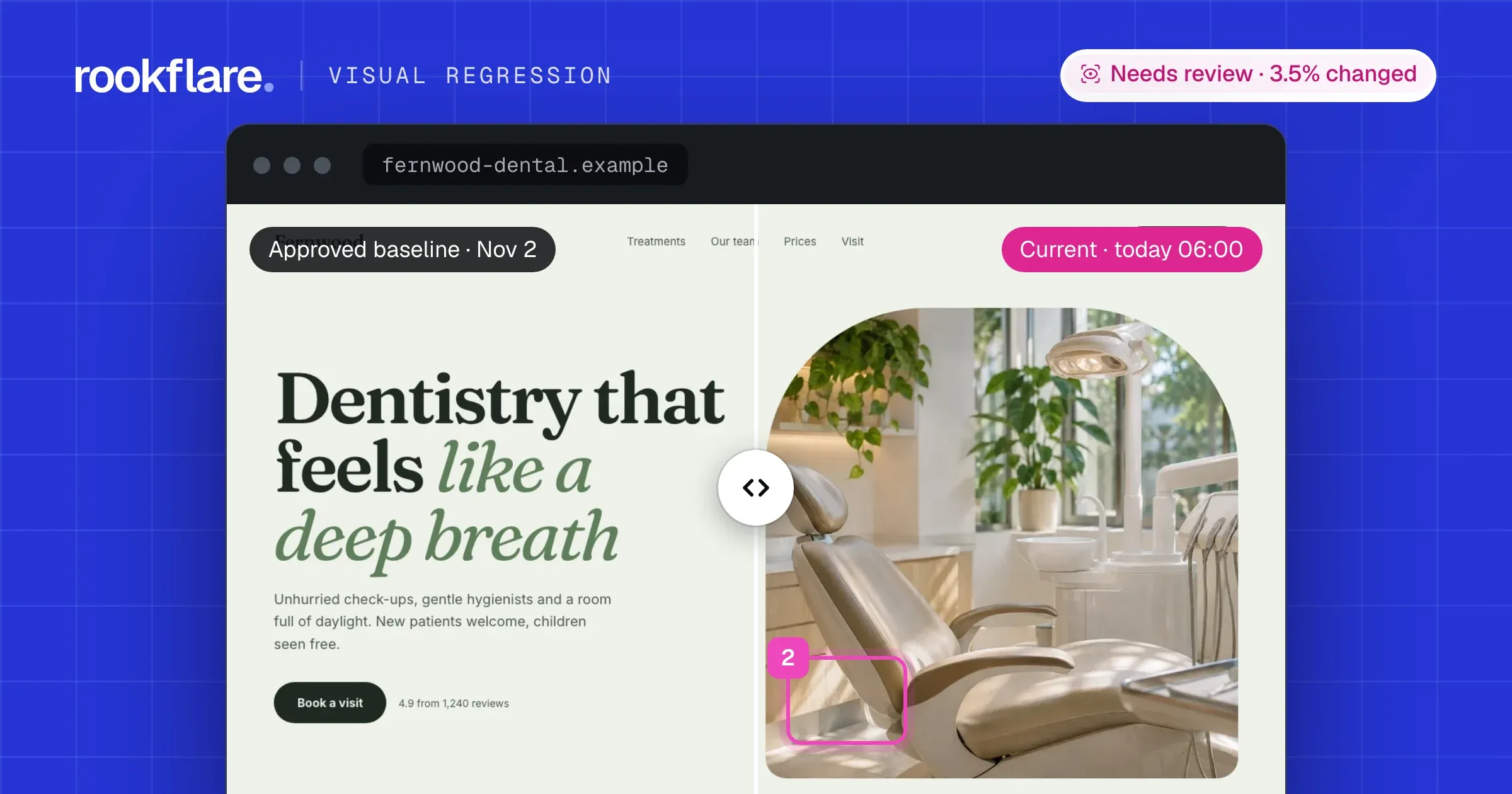
Visual regression testing compares a new screenshot of a page with an approved reference, the baseline, to find changes nobody intended. Take away the tooling and every visual check has four steps:
- Capture the page in a real browser at a fixed width.
- Compare it with the baseline, pixel by pixel.
- Highlight the regions that differ.
- Decide whether the change was intended. If it was, it becomes the new baseline. If not, it is a bug.
Steps one to three are cheap to automate. Step four needs a person who knows the page, and it is what keeps the check useful a year later.
Why production changes never reach your test suite
Visual tests in CI compare a branch with the main branch. Production checks compare the live site with itself over time, so they see changes that arrive from outside the codebase:
| Source of change | Goes through CI? | Example |
|---|---|---|
| Code release | Yes | A CSS refactor shifts the header |
| CMS content | No | A long product name breaks a card grid |
| Plugin or theme update | Usually not | A forms plugin changes its markup and your styles miss it |
| Third-party script | No | A chat widget covers the cookie settings link |
| Infrastructure | No | A CDN serves an old stylesheet with new HTML |
| Expired asset or font | No | A font stops loading and the fallback reflows every heading |
Plugin and theme updates are the most common of these on CMS sites. Finding what an update changed on the page has its own method.
Every row in that table still returns HTTP 200. A status check such as the website down checker tells you the page answers, not how it looks. The gap between the two is what pages that are up but broken are about.
Three ways to compare screenshots
Visual comparison does not have to start with a test framework. The three common setups differ in who maintains them and what they miss:
| Method | Setup | Catches | Misses |
|---|---|---|---|
| Manual before and after screenshots | None, minutes every time | Whatever you remember to capture | Changes between your checks; no history |
| Playwright screenshot tests in CI | A developer and a pipeline | Code changes before they ship | CMS edits, plugin updates and scripts added after release |
| Scheduled screenshots of live pages | Once, then review only | Changes from any source on monitored pages | Pages you did not add; areas behind a login |
If your team ships through CI, keep those tests. Add production checks for everything in the “No” rows of the first table.
Visual monitoring vs visual regression testing: which do you need?
Visual regression testing checks a release before it goes live, usually in CI; visual monitoring checks the live site on a schedule after it. Both compare screenshots with an approved reference. Regression tests stop a code change from shipping a broken layout. Monitoring catches breaks that reach the live site later, from content, plugins, scripts or infrastructure, so teams that ship through CI usually want both.
Website change detection often appears in the same tool lists. It watches pages, often on sites you do not run, and tells you that something changed. The three compare like this:
| Compared on | Visual regression testing | Visual monitoring | Change detection |
|---|---|---|---|
| When it runs | Before a release, in CI or on a staging site | On a schedule and after deploys, on the live site | On a schedule, on any public page |
| Compares | The branch with the main branch, or staging with production | Each live page with its approved baseline | Usually each check with the previous one |
| Catches | Layout breaks caused by code changes | Breaks from code, content, plugins and scripts | Any change in the watched area |
| Misses | Changes that reach the live site without a release | Breaks before they go live; pages not on the list | Whether a change is a bug on your site |
| Who it is for | Developers and agencies testing a release | Site owners, marketers and agencies running the site | Anyone following competitors, prices or notices |
| Typical tools | Percy, Chromatic, Argos, BackstopJS, Diffy, Playwright | Rookflare; scheduled scans in Diffy and Percy | Visualping, Distill |
The method in this guide is visual monitoring. Tool facts below come from each vendor’s own page, checked on 19 November 2026.
When a release-testing tool like Percy is the better choice
Pick a release-testing tool when you want to stop a broken layout before it goes live. Percy runs visual regression tests in your CI/CD pipeline, with review and approval per build. Chromatic works with Storybook, Vitest, Playwright and Cypress tests and adds status checks to pull requests.
Argos is an open-source platform for the same frameworks. BackstopJS is an MIT-licensed tool you run yourself, comparing test screenshots with reference screenshots. Playwright’s own screenshot assertion, shown later in this guide, needs no extra service. Diffy works from URLs, with no test code, and compares production with staging, dev or any other environment.
When a change watcher like Visualping is the better choice
Pick a change watcher when you follow pages you do not run, such as a competitor’s prices, a supplier’s terms or a public notice. Visualping alerts you with a highlighted screenshot when a page changes. Distill and the open-source changedetection.io watch chosen parts of a page for changes too.
When live-site monitoring is the better choice
Pick monitoring of the live site when changes reach it outside a release, as in the table of change sources above, or when nobody on the team writes tests. Rookflare, described at the end of this guide, compares live pages only. Release-testing tools can also run on a schedule: Diffy runs scheduled comparisons, and Percy’s Website Scanner reads your XML sitemap and runs on hourly, daily or weekly schedules.
Choose pages by template, not by count
Pages built from the same template break together, so one page per template covers the rest. Then add every page that earns money or brings leads, and every page with a third-party embed.
Take a fictional shop such as Northwind Shop. Its home page, one category page, one product page, the cart, the contact page and one blog article cover every template it uses. Six pages with tidy baselines are worth more than six hundred nobody reviews.
Approve a baseline you can defend
A baseline is a screenshot someone has looked at and agreed: this is what the page should look like. A good one:
- was captured after the page finished loading, fonts and lazy images included;
- has no one-off states, such as a half-open cookie banner or a carousel caught mid-slide;
- was reviewed by someone who knows the page, top to bottom.
Re-approve when the page changed on purpose, such as a redesign or a new campaign section. Never re-approve just to make a red result go away. The baseline approval and false positive guide covers each noise source and its fix.
Ignore what moves, keep the threshold low
Every visual tool has a sensitivity setting, and raising it until the alerts stop is tempting. The arithmetic shows why that fails.
A desktop capture 1440 pixels wide and 6000 tall has about 8.6 million pixels. A rotating hero of 1440 × 600 pixels is 10 % of them. A missing 120 × 48 “Add to cart” button is under 0.07 %. Any page-wide threshold that ignores the hero ignores the missing button too.
Mark the part that moves instead, such as a carousel, a chat bubble or a “last updated” date. Keep the rest of the page strict. Ignoring an element by its CSS selector follows it when the layout shifts; a drawn box fits third-party embeds without a stable selector.
Keep separate baselines for desktop and mobile
A page at 1440 pixels and the same page at 390 pixels are two layouts. Elements move, collapse and disappear between them, so a desktop baseline says nothing about mobile. The layout bugs that only show at one width are a list of their own.
Monitor a website for visual changes and get an alert
Visual monitoring with alerts takes an afternoon to set up and a few minutes a week to run:
- List one page per template, plus the money and lead pages.
- Pick a schedule. Daily is a sensible default, plus a run after each deploy.
- Capture desktop and mobile, then approve each baseline after looking at it.
- Add ignore rules for the false positives of the first week, one at a time.
- Send alerts to a channel people already read, following a few rules against alert fatigue.
- Decide on each alert: approve the change as the new baseline, or fix the page.
A useful visual change alert names the page and the screen width, shows the changed areas marked on the screenshot and links to the comparison. When a header change touches every page, one alert listing the pages is easier to act on than one alert per page.
Change watchers also send alerts, but many compare each check with the previous one. A break nobody acts on then becomes the reference for the next check, so it alerts once. A baseline stays the same until a person approves a new one, so the comparison keeps showing the break until someone fixes the page.
Run the same check in Playwright
If you have a developer, the same idea fits in a few lines of Playwright. It suits pages behind a login and checks inside a pipeline:
import { test, expect } from '@playwright/test'

test('pricing page looks unchanged', async ({ page }) => {
	await page.goto('https://example.com/pricing')
	await expect(page).toHaveScreenshot('pricing.png', {
		fullPage: true,
		mask: [page.locator('.live-chat')],
	})
})
The first run has no reference, so it fails and writes the screenshot as the baseline. Playwright adds the project and platform to the file name (for example pricing-chromium-darwin.png), so generate baselines on the machine type that runs the tests. The Playwright visual comparisons guide explains naming and --update-snapshots, which is how you re-approve.
mask plays the role of an ignore region. The toHaveScreenshot options also stop CSS animations by default and accept maxDiffPixels and threshold, which you should keep low for the reason above.
How Rookflare runs these checks
Rookflare does the four steps on a schedule for the visual monitoring of live pages. It finds pages in your sitemap and captures each one in Chromium at 1440 and 390 pixels wide. It compares each capture with the baseline you approved. Changed areas get numbered boxes. A visual change always waits for a person, who approves it as the new baseline, marks it as expected or fixes the page. Rows are aligned before the comparison. A section inserted near the top shows as one inserted band, not as a change to everything below it. You can ignore elements by CSS selector or ignore areas on the comparison. Alerts go by email on every plan and by Slack on Growth and Agency. A change that touches many pages sends one alert per scan, listing the first 10 changed pages and how many more there are. On the Growth and Agency plans, a deploy webhook starts a scan as soon as a deploy finishes. Rookflare captures public pages only and does not log in, so account areas still need a Playwright test. It does not run inside a pull request or compare staging with production; that is a job for the CI tools above.
Questions
Is visual regression testing the same as website change detection?
No. Change detection tools usually compare a page’s text or HTML and tell you that something changed. Visual regression testing compares the rendered page, so it also catches layout breaks where the text stayed the same.
Which visual monitoring tools fit which job?
To test a release, teams use Percy, Chromatic, Argos, BackstopJS, Playwright or Diffy, which compares staging with production. For the live site on a schedule, Rookflare, or the scheduled scans in Diffy and Percy. For pages on sites you do not run, Visualping, Distill or changedetection.io.
How do I run a visual check after each deploy?
Start the check from the deploy itself. A CI tool compares screenshots before the deploy; a monitoring tool starts a scan of the live site when the deploy finishes, usually through a webhook. The deploy integrations show Rookflare’s webhook steps for GitHub Actions, GitLab CI, Vercel, Netlify, Cloudflare Pages, WordPress and cURL.
How often should visual checks run?
Daily suits most marketing sites and shops, plus a run right after each deploy or update. Pages that change several times a day need ignore rules more than a higher frequency.
Share this article

Written by
Dalius Pamedytis
CEO of Rookflare
Dalius is the CEO of Rookflare and the engineer who builds it, from the Playwright scanner that captures every page to the dashboard where you review what changed. Day to day he also works on large marketing websites and dashboards, so he has seen how a quiet release can break a checkout button or a sign-up form. He writes about what actually breaks on real websites and the simplest way to catch it before your visitors do.
More from Dalius PamedytisKeep reading
-
Visual monitoring
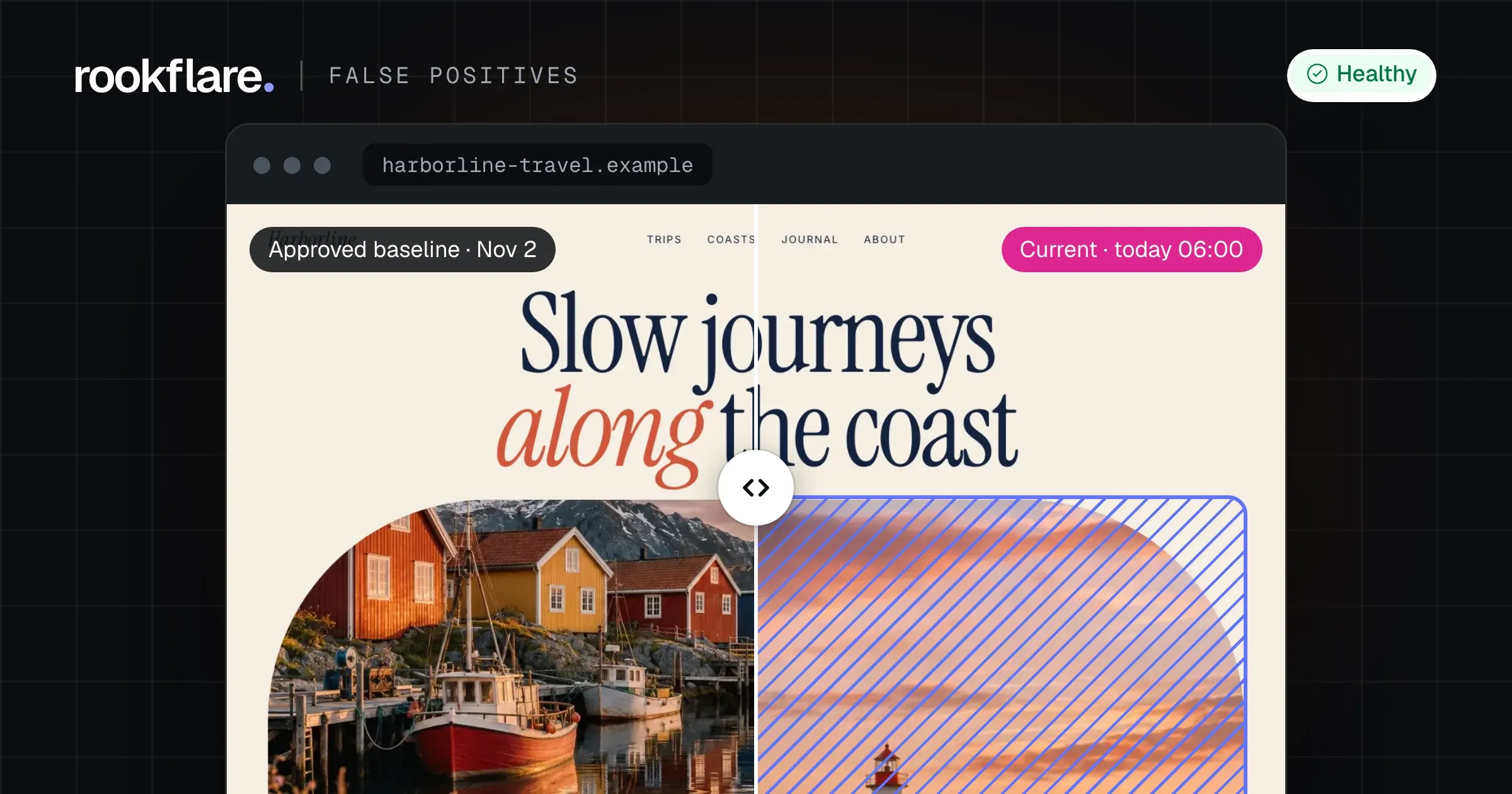
False positives in visual regression testing: causes and fixes
Day one brings twenty visual alerts, day four a muted channel. The sources of that noise are predictable, and each has a better fix than a higher threshold.
-
Visual monitoring
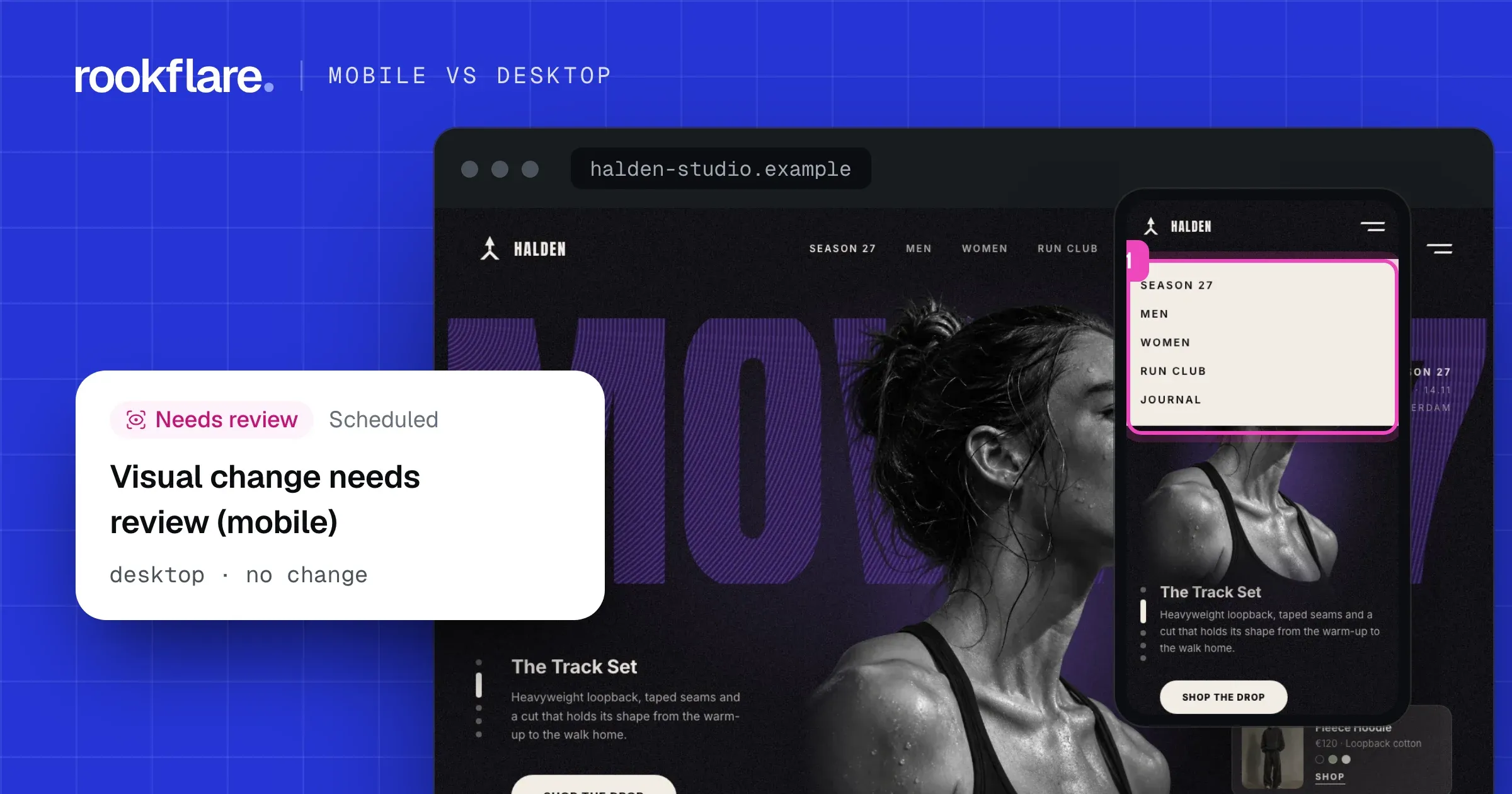
Website looks fine on desktop but broken on mobile
The reviewer is on a laptop, the visitor who hits the bug is on a phone. Layout bugs that only exist at one width, how to find them in five minutes, and what emulation cannot show.
-
Visual monitoring
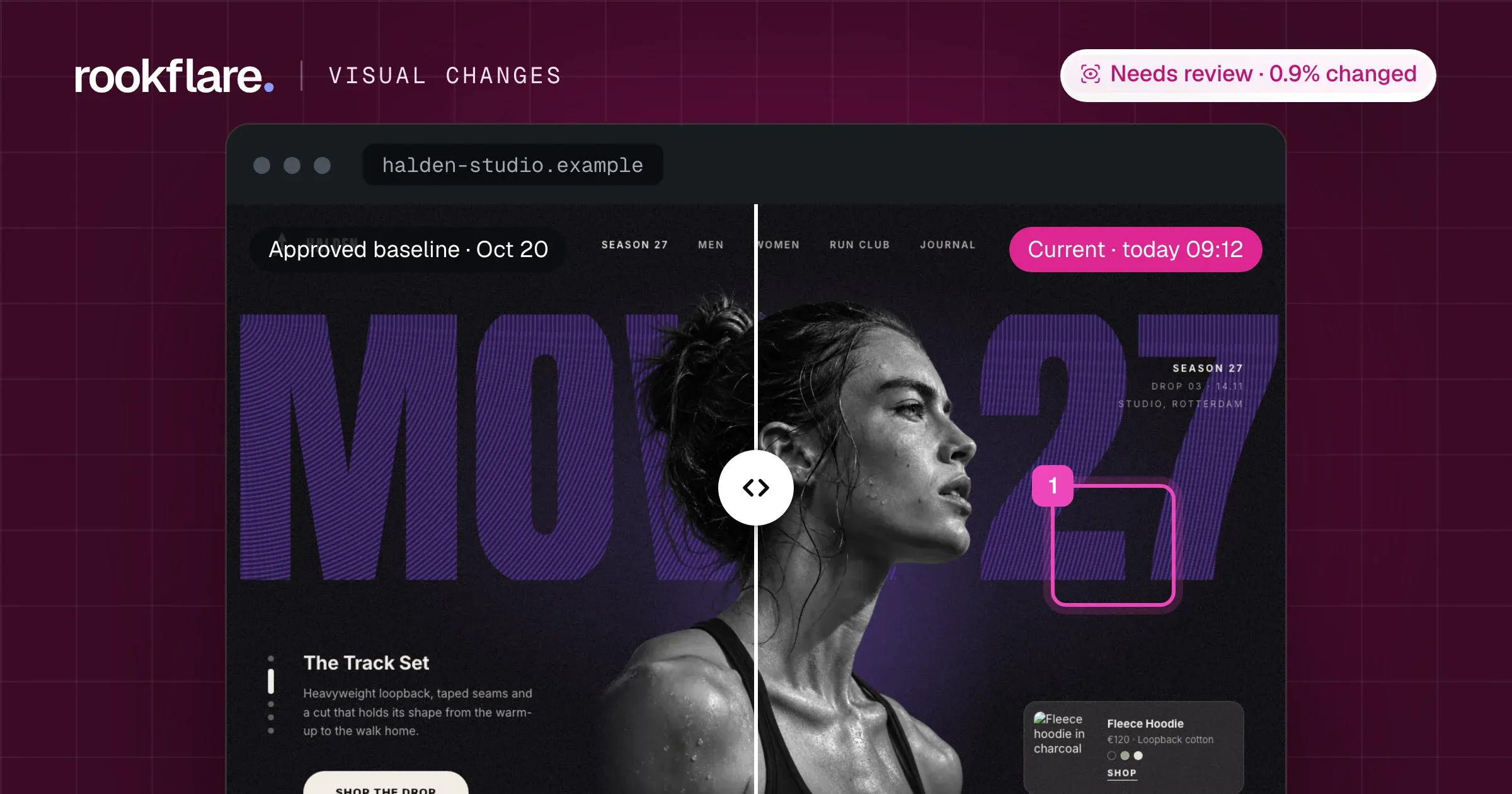
Website looks different after an update: how to find what changed
After a plugin or theme update, the question is what changed and whether it matters. A before and after method that answers both quickly, even without a before screenshot.
