False positives in visual regression testing: causes and fixes
Day one brings twenty visual alerts, day four a muted channel. The sources of that noise are predictable, and each has a better fix than a higher threshold.
 CEO of Rookflare
- Published
- Reading time
- 6 min read
Key takeaways
- False positives come from a short list: banners, carousels, dates, ads, late images, fonts, experiments and animations.
- Capture the unchanged page twice a few seconds apart: whatever differs moves on its own and needs an ignore rule.
- Ignore an element by selector when it has a stable one, and draw a tight box only around embeds that do not.
- Keep the threshold low; a page-wide threshold that hides a rotating hero also hides a missing button.
- Look at each baseline before you approve it, on desktop and on mobile.
A false positive in visual regression testing is a flagged change that nobody made: a cookie banner, a carousel slide, a timestamp. Almost all of them come from eight predictable sources, and each has a fix that keeps the rest of the page strict. Fix them during the first week, then approve only baselines you have looked at.
Why do visual tests fail when nothing changed?
Visual tests fail when nothing changed because the page never renders exactly the same twice. Banners, carousels, timestamps, ads, late images and fonts, experiments and animations all differ between captures. The comparison counts pixels, not intent, so it reports each one as a change. Playwright’s docs add that rendering also varies with the operating system, browser version and hardware.
Where false positives come from
A baseline (the approved screenshot each new capture is compared with) only stays useful while the comparison stays quiet. These are the sources that make it noisy, with the fix that removes each one:
| Source | What it looks like | Better fix |
|---|---|---|
| Cookie and consent banners | A large block over the bottom of every page | Capture with the banner hidden or in a consistent state |
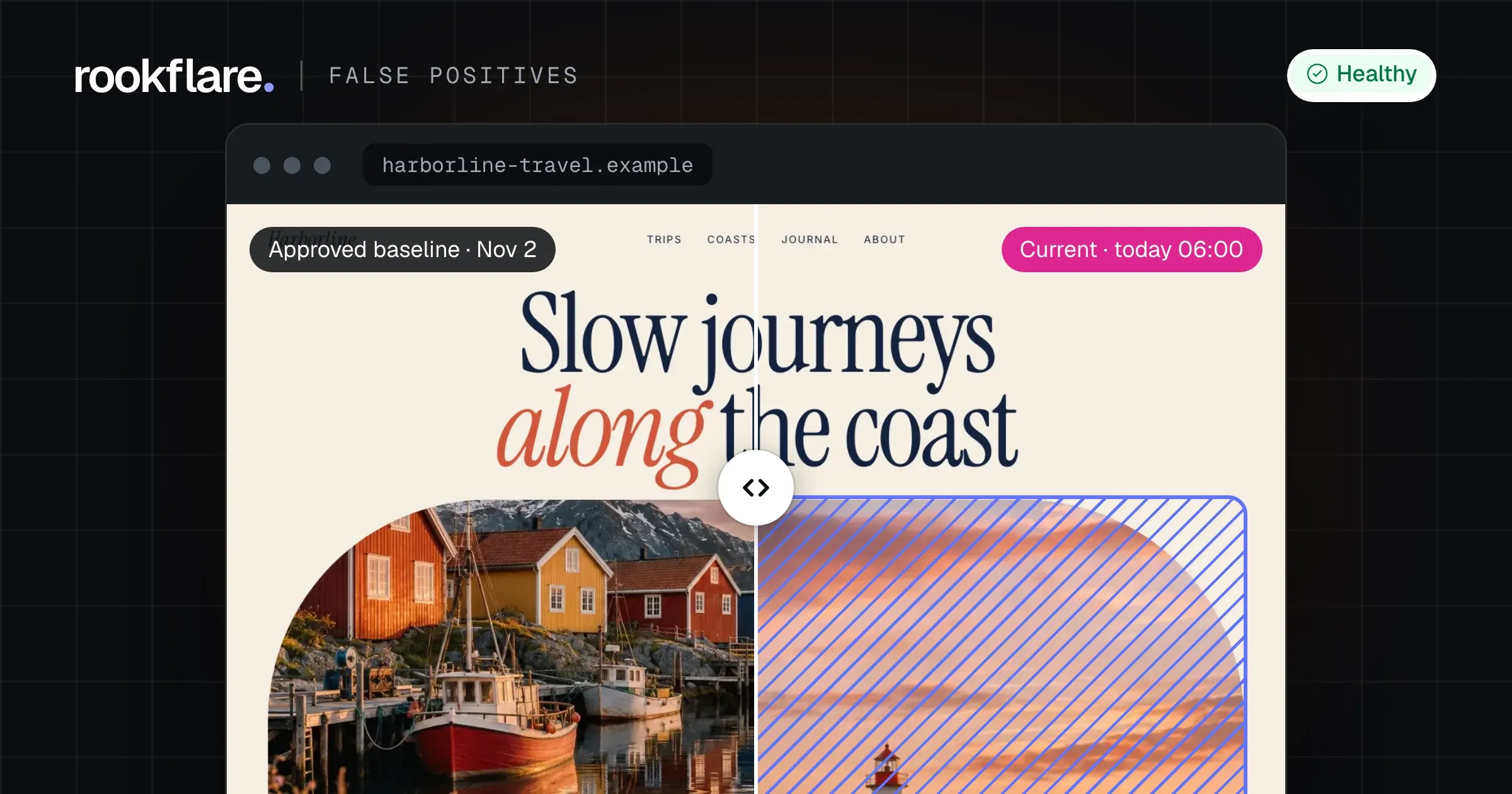
| Carousels and rotating heroes | The hero differs in every capture | Reset to the first slide, or ignore the slide area only |
| Dates, counters, “5 minutes ago” | Small text changes in the same spot | Ignore the element by its selector |
| Ads and third-party embeds | Random content in fixed slots | Ignore the slot, keep the layout around it strict |
| Lazy-loaded images | Blank boxes in some captures | Scroll the page so images load before capture |
| Late web fonts | All text shifts by a few pixels | Wait for fonts before capturing |
| A/B tests and personalisation | Two versions of a section | Pin the variant for the monitor, or ignore the section |
| Animations and video | Elements caught mid-movement | Stop animations and pause video for the capture |
The first column is also a checklist for a new page. Walk through it before you approve the page’s first baseline.
Find hidden noise by capturing twice
Some pages move in ways the table does not predict: a testimonial picked at random, a stock counter, a map tile that loads late. The quickest way to find them is to capture the unchanged page twice, a few seconds apart, and compare the two.
Nothing changed on the site between those captures. Whatever differs moves on its own, so it needs an ignore rule before it ever reaches a reviewer. Run the double capture on every new page and again after a redesign.
Stabilise the page before capture
Noise you can stop is better than noise you ignore, because an ignored area also hides real breaks inside it. If you control the capture, four steps remove half the table.
- Stop motion. Playwright’s screenshot assertion stops CSS animations and transitions by default (
animations: 'disabled'). - Wait for fonts.
document.fonts.readyresolves when the page’s web fonts have loaded. - Load lazy images. Images with
loading="lazy"only load near the viewport, as MDN’s lazy loading guide explains, so scroll to the bottom first. - Hide what you cannot stop. Playwright’s
stylePathoption applies a stylesheet during the capture only.
In a Playwright test, steps two and three look like this:
await page.evaluate(async () => {
	await document.fonts.ready
	for (let y = 0; y < document.body.scrollHeight; y += window.innerHeight) {
		window.scrollTo(0, y)
		await new Promise((resolve) => setTimeout(resolve, 100))
	}
	window.scrollTo(0, 0)
})
And a capture-only stylesheet for step four, passed through stylePath as described in Playwright’s visual comparison docs:
/* applied to the monitoring capture only, never shipped to visitors */
#cookie-banner,
.live-chat {
	visibility: hidden;
}Ignore an element or an area: pick by what moves
An ignore rule tells the comparison to skip part of the page. The two kinds suit different sources:
| What moves | Use | Why |
|---|---|---|
An element with a stable selector (.live-chat) |
Ignore by CSS selector | Follows the element when the layout above it shifts |
| A third-party iframe or ad slot without a selector | A drawn box | The only option when you cannot target the element |
| A whole section that varies (personalised products) | A box around its items | Keeps the heading and the section edges under check |
Draw the smallest box that contains the moving part. A box around the whole hero hides a missing headline along with the rotating image. Revisit boxes after a redesign, because a box drawn for the old layout may now cover a button.
Keep the threshold low
Pixels do not know what they mean. A rotating hero changes hundreds of thousands of them, and a missing “Pay now” button changes a few thousand. A page-wide threshold high enough to ignore the hero ignores the button too.
Noise belongs to specific parts of the page, so treat it there and keep the rest strict. The guide to visual regression testing without code works through the numbers on a full-page capture.
Approve a baseline in five checks
- Look at the whole page, top to bottom, at the captured width, not only the highlighted part.
- Open the live page in your own browser if anything looks unusual.
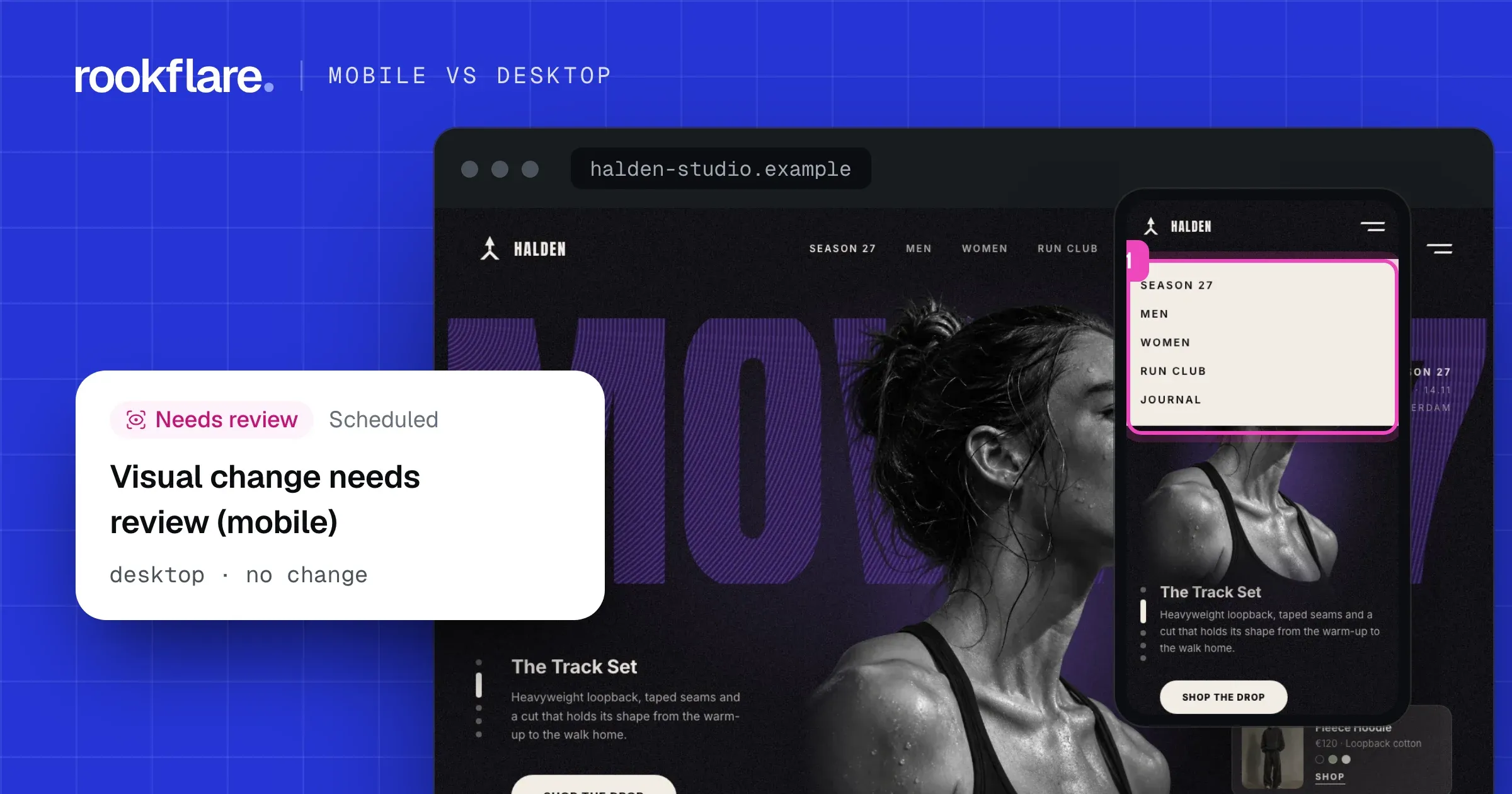
- Check both devices. A correct desktop baseline says nothing about mobile, which has its own layout bugs at phone width.
- Approve what you have looked at. Approving fifty screenshots unseen is how a broken state becomes the reference.
- Leave a note for the next person, such as “spring campaign hero, until 31 May”.
Approve, accept or fix: a decision rule
Each flagged change gets one of four answers:
- The change was intended and is correct. Approve the new screenshot as the baseline.
- The change was expected but temporary, such as a one-week sale banner. Accept it once and keep the old baseline.
- Nobody intended the change. Fix the page and leave the baseline alone; finding what an update changed helps when the cause is unclear.
- The same area was flagged three times and nothing was wrong. That area is noise. Add an ignore rule instead of approving again.
Expect the first week to be noisy and fix each false positive as it appears. Channels that stay noisy get muted, and the rules against alert fatigue cover routing once the comparison itself is quiet.
How Rookflare reduces noise before comparing
Rookflare runs the stabilising steps before each screenshot for its visual monitoring. It hides common cookie banners and pauses CSS animations and video. It resets known carousel libraries such as Swiper, Slick and Splide to their first slide. It waits for web fonts and scrolls the page so lazy images load. Timestamps and common chat widgets are masked. When a page has no baseline yet, or differs from its baseline, Rookflare captures it again a few seconds later. What moved between the two captures becomes an ignore area for later scans. You can add your own rules by CSS selector or by area on the comparison, and remove any automatic area. Rookflare cannot pin an A/B test variant, so a running experiment still needs an ignore rule from you.
Questions
Should a baseline be captured with the cookie banner open or closed?
Closed or hidden, and the same way every time. An open banner covers content you want compared, and its position often differs between captures.
How many ignore rules are too many?
When ignored areas cover a large share of the page, the comparison checks little. If a page needs that many rules, monitor its stable sections and check the rest another way.
Share this article

Written by
Dalius Pamedytis
CEO of Rookflare
Dalius is the CEO of Rookflare and the engineer who builds it, from the Playwright scanner that captures every page to the dashboard where you review what changed. Day to day he also works on large marketing websites and dashboards, so he has seen how a quiet release can break a checkout button or a sign-up form. He writes about what actually breaks on real websites and the simplest way to catch it before your visitors do.
More from Dalius PamedytisKeep reading
-
Visual monitoring
Website looks fine on desktop but broken on mobile
The reviewer is on a laptop, the visitor who hits the bug is on a phone. Layout bugs that only exist at one width, how to find them in five minutes, and what emulation cannot show.
-
Visual monitoring
Visual regression testing without code: baselines in production
Many layout breaks never pass through a pull request: CMS edits, plugin updates, third-party scripts. How screenshot baselines on the live site catch them without a test suite.
-
Visual monitoring
Website looks different after an update: how to find what changed
After a plugin or theme update, the question is what changed and whether it matters. A before and after method that answers both quickly, even without a before screenshot.
