Website looks different after an update: how to find what changed
After a plugin or theme update, the question is what changed and whether it matters. A before and after method that answers both quickly, even without a before screenshot.
 CEO of Rookflare
- Published
- Reading time
- 6 min read
Key takeaways
- Rule out the browser and CDN cache before you blame the update.
- Capture one page per template before the update and compare after it, at desktop and phone widths.
- Without a before screenshot, a staging copy or a rollback on staging gives you one.
- For each change, ask whether a visitor or the client would notice and mind, then keep, fix or roll back.
When a website looks different after an update, compare before and after screenshots of one page per template, at desktop and phone widths. If you have no before screenshot, the update log and a staging copy usually narrow it down. Then decide for each change whether to keep it, fix it or roll the update back.
Rule out the cache first
Half-updated pages often come from the cache, not the update. A browser or CDN can serve the old stylesheet with the new HTML, and the mix looks broken to you while visitors see something else.
Open the page in a private window and compare it with your normal browser. If they differ, clear the CDN cache or wait for it to expire. The Cache-Control header on the stylesheet tells you how long that takes, as MDN’s Cache-Control reference describes.
Find out what was updated and when
Before you look for changes, list the updates that could explain them. On WordPress, the Updates screen and the Plugins screen show what is pending and what has auto-updates turned on.
WordPress runs auto-updates twice a day for the plugins and themes that have them turned on, and by default emails the site owner after each attempt. Those emails are a timestamped update log, so search the admin inbox before anything else.
Other sources worth checking:
- The CMS activity or audit log, if your platform or a plugin keeps one.
- Your hosting panel, which may update PHP, the CMS core or caching layers on its own schedule.
- The tag manager’s version history, because a new tag can add a chat widget or banner without any site update.
Capture before, compare after
The reliable method is screenshots of the same pages, at the same widths, taken right before and right after the update. Pick pages by template, because pages on one template change together:
- the home page;
- one page of each other template, such as a service page, a blog article and a product page;
- every page with a form, a cart or a booking widget.
For a small site such as the fictional Fernwood Dental, that is the home page, one treatment page, one article and the booking page. Four pairs of screenshots cover the whole site.
Three rules make the comparison trustworthy:
- Use the same browser at the same window size for both captures.
- Wait until fonts and images have loaded, scrolling to the bottom once.
- Close or accept the cookie banner the same way both times.
Full-page screenshots need no extension. In Chrome, open DevTools, press Ctrl+Shift+P (Cmd+Shift+P on a Mac) and run “Capture full size screenshot”. In Firefox, right-click the page and choose “Take Screenshot”.
Repeat at a phone width of about 390 pixels, because mobile menus and stacked columns are where theme updates often show first. The layout bugs that only appear at one width explain why one desktop check is not enough.
No before screenshot? Use one of these
Most people only start comparing after something looks off. These fallbacks still give you a reference:
- A staging copy that has not received the update yet. Capture it at the same widths.
- A rollback on staging. Restore the previous plugin or theme version there, capture, then compare with live.
- An old screenshot from a client report, a ticket or a design handover. Rough, but it often settles “was it always like this?”.
Layout broke after a WordPress, Elementor or Divi update
Each kind of update tends to touch the same parts of the page. Page builders such as Elementor and Divi own the sections and columns, so check how those stack at phone width:
| Update | Where it shows | What to look at |
|---|---|---|
| Forms plugin | Contact, booking and checkout forms | Field spacing, labels, the submit button |
| Theme | Spacing, fonts, header and footer | Heading sizes, the mobile menu |
| Page builder (Elementor, Divi) | Sections and columns | How columns stack at phone width |
| SEO plugin | Nothing visible | Title, meta description, canonical, robots tag |
| Slider, gallery or map | Embedded blocks | Blank areas, missing controls |
| CMS core | Editor blocks, image sizes | Cropped or resized images |
| New tag or script | Overlays | Chat bubbles or banners covering buttons |
The SEO plugin row is the one a screenshot never shows. Check the head tags with the meta tag checker after such an update.
A form whose submit button disappeared is the costliest row. Watching critical elements such as forms and buttons catches that even when the rest of the page looks fine.
Keep, fix or roll back
For each change you found, one question decides most cases: would a visitor or the client notice and mind?
- It touches a form, cart, booking or main call to action. Fix it now or roll the update back.
- It is visible and looks wrong. Fix it in the theme or plugin settings, or with a small CSS override.
- It is visible but acceptable, such as slightly different button padding. Keep it and make it the new reference.
- You are not sure. Send the client the before and after pair and ask.
Don’t let small accepted changes pile up unreviewed, because the next comparison becomes harder to read. Write each one down; it belongs in the monthly client report if you run one.
Roll back an update and find the conflict
When a change has to go, work on a staging copy first if you have one. Three routes help:
- Restore a backup taken before the update. WordPress’s own troubleshooting FAQ says to back up files and database before any update, automatic or manual.
- Reinstall the previous version of the plugin or theme, from the vendor or your backup, then turn off its auto-updates until a fix ships.
- Deactivate plugins to find the conflict. Deactivate them all, check whether the layout returns, then reactivate them one at a time until it breaks again. The WordPress troubleshooting FAQ recommends the same one-at-a-time method.
On a live site, the Health Check & Troubleshooting plugin does step 3 more safely. Its troubleshooting mode disables plugins and switches to a default theme for your own session only, until you turn it off or log out.
Make the next update easier
Take the before screenshots now, while nothing is wrong. Turn off auto-updates for plugins that touch forms or checkout, and update those by hand on a weekday morning. Update one plugin at a time when something has broken before, so the next change has one cause. The full routine for WordPress, with WP-CLI commands, debug.log and rollback steps, is in how to know if a WordPress plugin update broke your site.
How Rookflare shows what changed
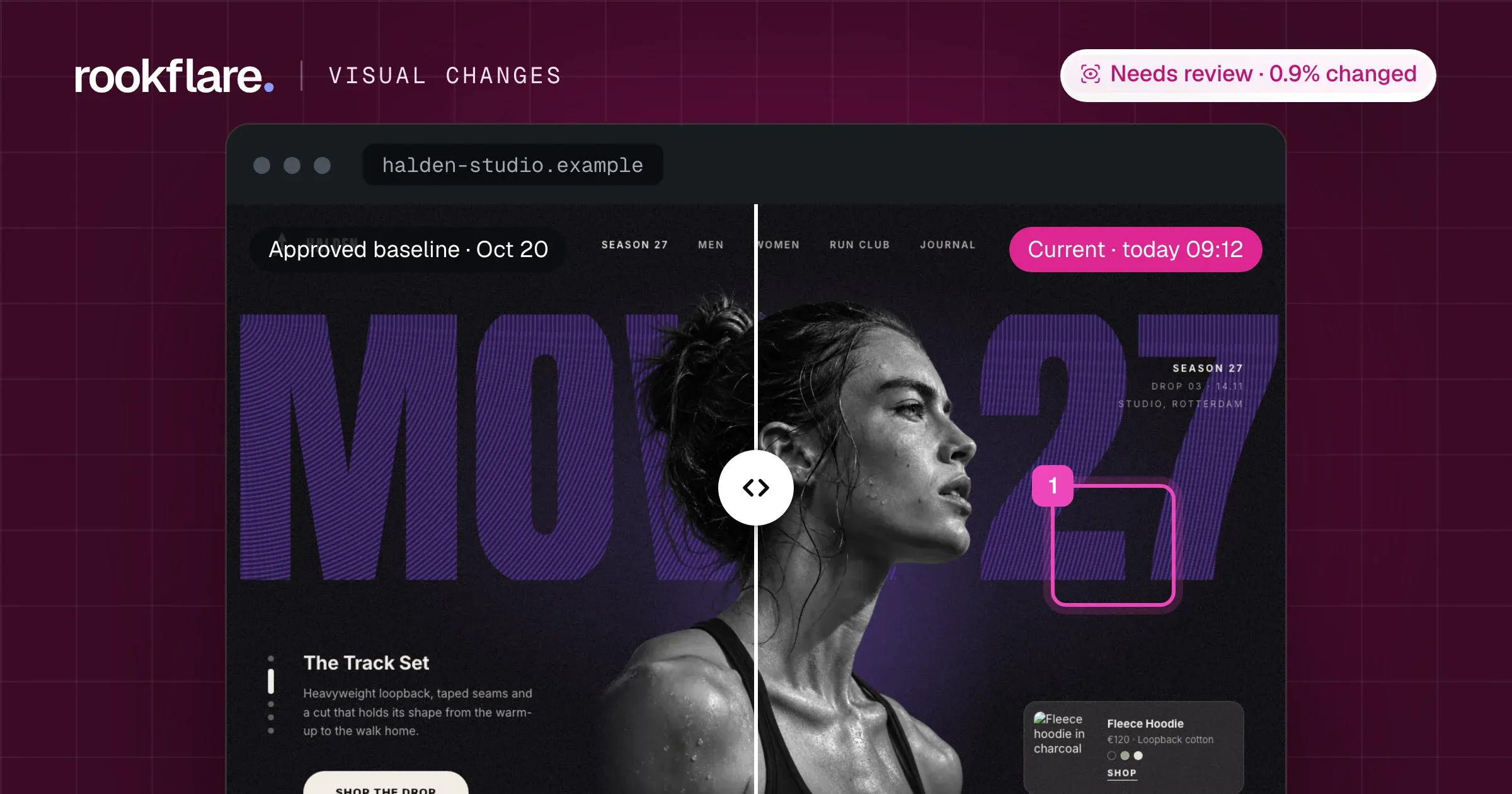
If your pages are monitored against approved baselines, the baseline is your before screenshot. Rookflare’s visual monitoring lets you start a scan with “Scan now” in the dashboard right after the update. A deploy hook can start it too, on plans that include one. The comparison marks changed areas with numbered boxes on desktop and mobile, each against its own baseline, and you approve, accept or fix each change. On-demand scans have a daily limit. Rookflare shows what changed on the page, not which update caused it, and it does not log in to your CMS.
Share this article

Written by
Dalius Pamedytis
CEO of Rookflare
Dalius is the CEO of Rookflare and the engineer who builds it, from the Playwright scanner that captures every page to the dashboard where you review what changed. Day to day he also works on large marketing websites and dashboards, so he has seen how a quiet release can break a checkout button or a sign-up form. He writes about what actually breaks on real websites and the simplest way to catch it before your visitors do.
More from Dalius PamedytisKeep reading
-
Visual monitoring
False positives in visual regression testing: causes and fixes
Day one brings twenty visual alerts, day four a muted channel. The sources of that noise are predictable, and each has a better fix than a higher threshold.
-
Visual monitoring
Website looks fine on desktop but broken on mobile
The reviewer is on a laptop, the visitor who hits the bug is on a phone. Layout bugs that only exist at one width, how to find them in five minutes, and what emulation cannot show.
-
Visual monitoring
Visual regression testing without code: baselines in production
Many layout breaks never pass through a pull request: CMS edits, plugin updates, third-party scripts. How screenshot baselines on the live site catch them without a test suite.
